
Multi-Dimensional Availabilities (MDAs, sometimes called joined- or dependent availabilities) allow you to make a Dimension record available only when it is combined with other Dimension records. This can be used for scenarios in which there is a dependency between records: for example making a Staff member only available in a specific building.
Configure multi-dimensional availabilities
To make an availability multi-dimensional, follow these steps on the Availability record:
-
Enable the Is Dependent Availability checkbox.
-
Fill in the lookups to the Dimension records that must be on the reservation for this availability to apply, for example Resource and Staff.
Set these fields on the standard Availability record page, for example through the View Record icon next to an opening time in GoMeddo Settings > GoMeddo Setup > Resources. The New Availability window under Opening times does not show them.
For example, the following screenshot makes ABBEY available in Berlin on weekdays between 08:00 and 16:00. The Is Dependent Availability checkbox is enabled, which links the two:
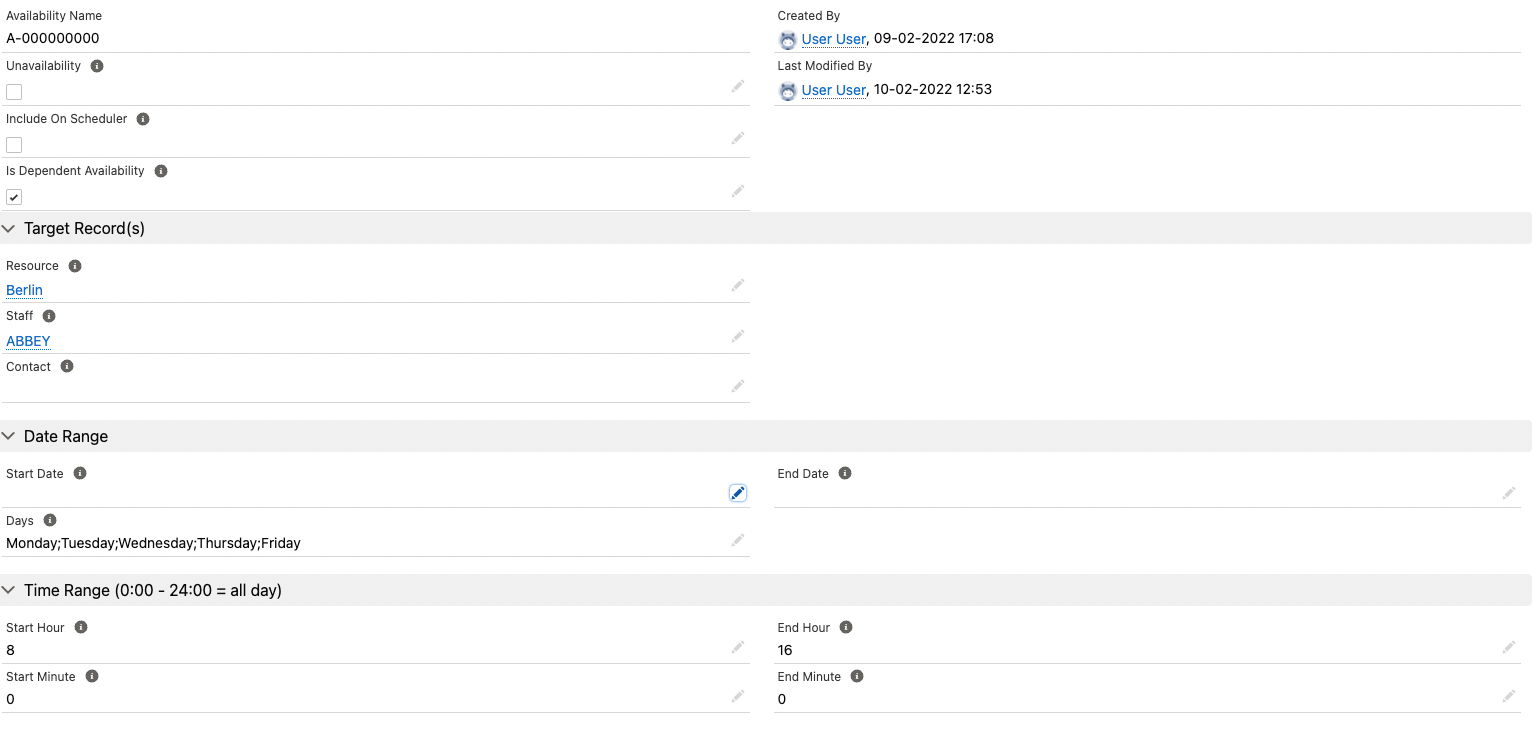

Availability inheritance
Normal availability inheritance applies to Multi-Dimensional Availabilities (MDAs). This means that if you assign an availability on a higher Resource, it also applies to the lower-level Resources below it. As in the example above, the defined availability for ABBEY also applies to any building or room that is a child of Berlin.
Lookup filtering on the reservation form
We illustrate the following with the same example as above. The reservation form has two lookups: one to Staff (ABBEY in the example), and one to Resource (Berlin in our example).
When filling lookups in the reservation form in relation to the Multi-Dimensional Availabilities, the results follow these rules:
-
The other lookup is empty: a record that is only available through an MDA is not shown yet, because an MDA only applies when all the records on it are on the reservation. Records with a normal availability are shown as usual.
Example: with the Resource field empty, the Staff lookup doesn't show ABBEY, unless ABBEY also has an availability where Is Dependent Availability is unchecked. -
One lookup is filled: the second lookup is filtered based on the content of the first lookup, considering the MDA. This also includes records that are generally available, through an availability that is not an MDA.
Example: as soon as you select Berlin it shows ABBEY plus any staff member that has an availability where Is Dependent Availability is unchecked.
Large dimensions
The lookup can only filter a search that matches up to 150 records, because every candidate record has to be conflict checked. If your dimension holds more records than that (for example hundreds of Staff members), GoMeddo first narrows the search down to the records that have an availability, or an applicable MDA, within the time frame of the reservation, and only then filters what is left as usual. This keeps MDA-restricted lookups working in large orgs instead of falling back to the message "Too many results, try a longer search term."
This requires the Prefilter Lookup On Availability checkbox on the Dimension Field (enabled by default) and the Conflict Rules engine. See Dimensions, and how to configure them for the exact conditions and for when to switch it off.
Multi-dimensional availability rendering on the calendar
When displaying availabilities on the calendar, GoMeddo treats MDAs slightly differently from normal availabilities. MDA unavailabilities are not taken into account on the calendar, because no filter has been applied yet to determine which availabilities to show. If a dimension record is only available together with another dimension record, the calendar shows that cell with diagonal stripes. When you hover over that area, it shows Only available with: followed by the records that this record is available with. To hide the stripes, enable the Hide Diagonal Lines For MDA's checkbox on the Calendar record; the hover text still shows.
This rendering requires the Enable Subcell Availability Rendering checkbox on the View record you are viewing. It is enabled by default.
MDA Applies To This Dimension Only
When the MDA Applies To This Dimension Only checkbox on a Dimension record is enabled, MDAs that include this dimension only make this dimension available. They do not make the other dimensions linked on the MDA available. Use this to restrict a dimension record to specific records of another dimension without granting availability to those records. For example, to make a Service available only at specific Resources, and only while those Resources are open, create all-day MDAs (0:00 to 24:00) for the Service. With this setting enabled on the Service dimension, those MDAs don't make the Resources available all day.