
Conditions are a reusable piece of GoMeddo configuration, defined as custom metadata. They are used in two places:
-
Double Booking Matching Conditions — deciding which existing reservations can block a new one. This is what the rest of this page describes.
-
Blueprint Filter Conditions — selecting which dimension records a Reservation Blueprint should consider for a field. See Using a Condition as a Blueprint Filter Condition at the bottom of this page.
The Condition and Condition Element metadata types below are shared by both; a few options behave differently per use, which is called out where relevant.
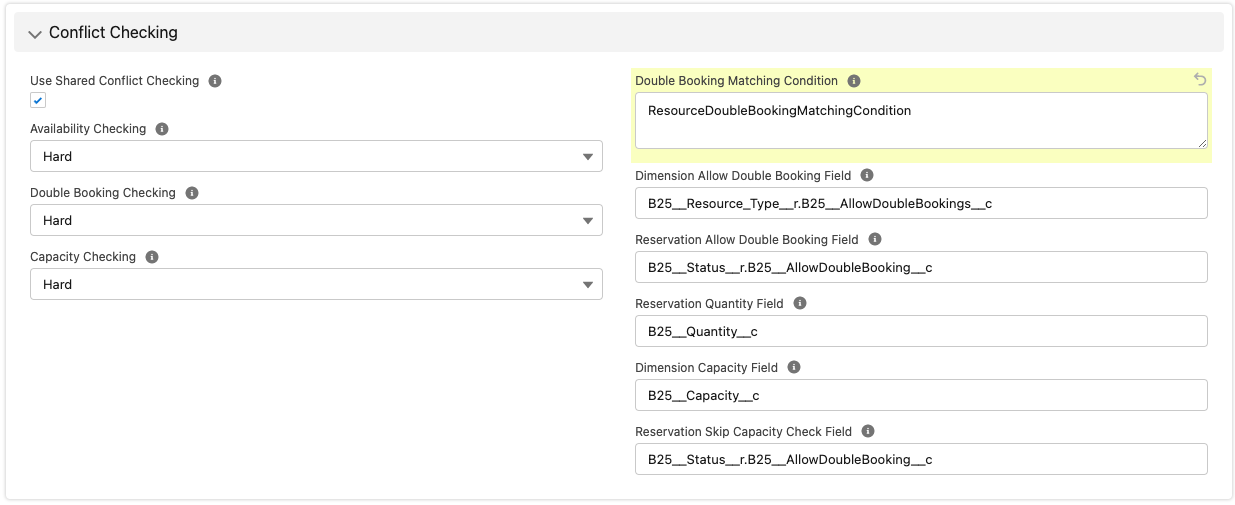
GoMeddo allows multiple ways to define when a reservation is blocking another reservation. One of these ways is the Double Booking Matching Condition, which can be configured at the dimension level.
See Dimensions, and how to configure them for a description of the this and other fields on Dimension.
Condition Custom Metadata Type
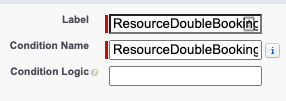
The custom metadata type defines a condition to use in Double Booking Matching Conditions. The only thing required is a Condition Name and Label. The Condition Name is the value that you will use to reference the Condition on the Dimension record. You can also optionally provide a Condition Logic string.
Logic String
The logic string combines the Condition Elements under a Condition in a different way than just AND. A logic string is a combination of identifiers {1} with the identifiers of the linked Condition Elements. And OR/AND if you use both OR and AND you need to group them using brackets (). Example ({1} OR {2}) AND {3}
Condition Element Custom Metadata Type
This is where you specify the condition. In the form of a field, an operator, and a value. The value is allowed to be a placeholder as described above. You can also specify an identifier to later use in the logic string of the parent Condition. The name and label do not matter but can be used to make identifying the element easier.

Simple Conditions
When inserting or updating a reservation, this condition is applied to existing reservations in the database, to find matches. Any existing reservations that do not match this condition are ignored and will not lead to double booking conflicts.
Simple Condition Example
For example, say you configure the following Double Booking Matching Condition on the Resource dimension:
-
field
B25__Account__r.Type -
operator
= -
value
VIP
This will result in existing reservations belonging to VIP accounts to be considered when checking for double bookings. And non-VIP account’s reservations will be ignored and can be over-booked. So if you would have two rooms each with a reservation already in it, one belonging to a VIP account and one belonging to a non-VIP account, you would still be able to book a reservation into the non-VIP room. But booking into the room already occupied by the VIP account will result in a double booking conflict.
Conditions with Placeholders
Optionally, you can include a placeholder indicating a field on the reservation being inserted or updated (as opposed to the other fields which refer to fields on the existing reservations already in the database).
Placeholder Example
For example, lets say you have a picklist named Gender__c on Contact, and you configure the following condition containing a placeholder:
-
field
B25__Contact__r.Gender__c -
operator
!= -
value
{B25__Contact__r.Gender__c}
This will result in a double booking conflict when you are mixing different genders in one room. It will match the contact’s gender of the reservation being inserted or updated to the contact’s gender of any reservations already present in the room. If they are different, the existing reservation will block the reservation being inserted or updated.
Placeholder and Grouping Example
The above example can be combined with the resource-grouping feature to solve a common campus use-case. Lets say you have multiple beds in a large dorm-room, and you group all the bed resources together. Combined with the above condition this will make it so that as soon as one bed is occupied by a certain gender, you will not be able to insert a reservation for a different gender in another bed. But as long as the room is empty, you are free to assign the first bed to any gender.
Using a Condition as a Blueprint Filter Condition
A Reservation Blueprint field whose Method to Get Value is Records matching condition uses a Condition to select its candidate dimension records. Put the Condition Name in the Filter Condition field on the Field to Set.
In this context the Condition is applied to the object of the Field to Set, not to reservations. That leads to a few differences from Double Booking Matching Conditions:
|
|
Double Booking Matching Condition |
Blueprint Filter Condition |
|---|---|---|
|
Applied to |
Existing reservations |
Records of the Field to Set's object (Staff, Resource, …) |
|
Fields in Condition Elements |
Fields on |
Fields on the Field to Set's object |
|
Operators |
|
|
|
Placeholders, e.g. |
Supported |
Not supported — there is no second record to compare against |
|
Condition Logic |
Supported, blank means AND |
Supported, blank means AND |
Example: A Condition named Advisors_Only with one element — field B25__Role__c, operator =, value Advisor — used on a Staff Field to Set makes every Advisor a candidate for that Blueprint field, without needing a building or room.