
If you have custom calendars, you might want to sort your Dimension Objects. For example: on a Resource calendar, sort by Rating. To do this, you can create one or more Calendar Dimension Sortings, and sort based on the value of a field which is related to the calendar you want to sort objects on.
Step-by-step guide
-
Make sure you add the Calendar Dimension Sorting related list to the Multi Calendar page layout
-
Create the field on the Dimension object that you want to use for sorting. This could for example be a Rating field on a Resource Dimension
-
From the calendar record, create a new Calendar Dimension Sorting from the Calendar Dimension Sorting related list, using the fields specified in the next section
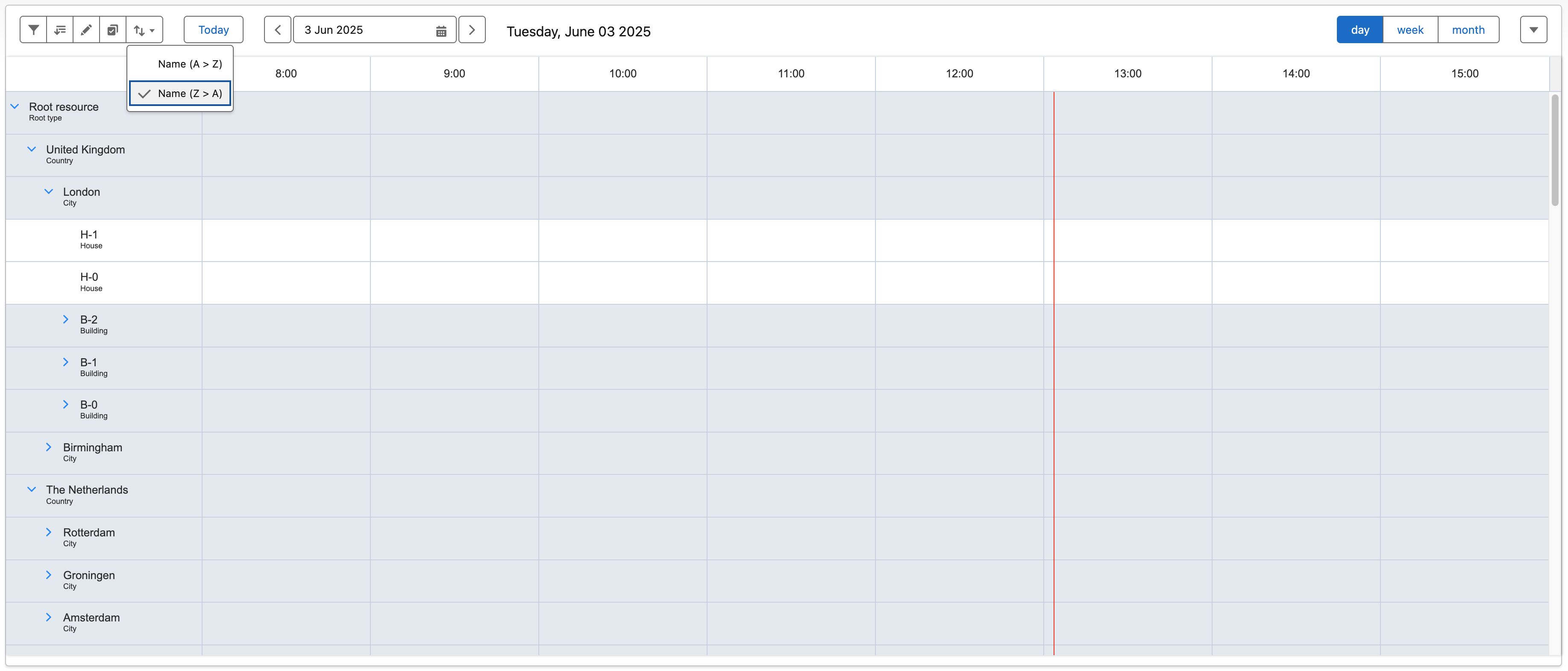
Creating more than one grouping on a calendar will expose a dropdown next to the Filter buttons on the calendar, allowing you to choose which sorting to use.
Calendar Dimension Sorting fields
|
Field name |
description |
|---|---|
|
Name |
The API Name of the field on the Dimension object that the object should be sorted by |
|
Label |
The label users should see in the dropdown where they can select which sorting to use. Leave blank for the label of the field. |
|
Calendar |
The calendar this sorting belongs to |
|
Default |
Define if this sorting should be selected by Default. If no Default is specified, the first selected sorting is random but deterministic |
|
Sort Direction |
The direction in which to sort the objects by |
If no Calendar Dimension Sorting are configured in the Calendar Dimension Sorting related list, the default behavior of sorting by B25__Order__c (1) and alphabetically in ascending order (2) will be used.
Example
The Resource calendar sorted alphabetically in descending order with the sorting dropdown open.
Related articles