
Available from GoMeddo 7.4. This article explains how to move your GoMeddo configuration from one Salesforce org to another with the Export / Import Configuration page in GoMeddo Settings, for example from a sandbox to production after you have finished configuring, or from production into a freshly refreshed sandbox.
Most GoMeddo configuration lives in Salesforce records (Calendars, Dimensions, Reservation Types, GoMeddo Rules, and so on), not in metadata, so it is not part of a regular Salesforce deployment. The Export / Import Configuration page lets an administrator download that configuration as a single file and load it into another org, without Data Loader, scripts or the SFDX Data Move Utility.
How it works
-
In the source org, you export the configuration. GoMeddo downloads a JSON file to your computer.
-
In the target org, you upload that file. GoMeddo first shows you a preview of what would change, without changing anything yet.
-
When you confirm, GoMeddo imports the file:
-
Records that already exist in the target org (matched by name or other identifying fields, see below) are updated.
-
Records that do not exist yet are created.
-
Nothing is deleted. Records that exist in the target org but not in the file are left untouched.
-
The import is all or nothing: if a single record fails, the whole import is rolled back and the target org is left exactly as it was.
-
Prerequisites
-
GoMeddo 7.4 or later installed in both orgs. Exporting and importing between different GoMeddo versions is possible, but fields that only exist in one of the versions are skipped and a warning is shown.
-
Your user has the B25 Admin permission set (or the System Administrator profile). Users without it see the message You need the GoMeddo Admin permission set to export or import configuration.
-
The records your configuration points at but that are not part of the export (Resources, Resource Types, Staff, Services and Groups, see below) already exist in the target org with the same names.
What is exported
The export contains two groups of objects. You can include or leave out each object individually.
GoMeddo configuration
|
Object |
Matched in the target org by |
|
Reservation Status |
Name |
|
Dimension |
Name (the API name of the object used as dimension) |
|
View |
Unique Identifier |
|
Reservation Title Group |
Name |
|
Reservation Blueprint |
Name |
|
Reservation Type |
Name |
|
Dimension Field |
Dimension + Name |
|
Dimension Junction |
Dimension + Name |
|
GoMeddo Rule |
Developer Name + Name |
|
Calendar |
Name |
|
Time Header |
View + Name |
|
Reservation Type Status |
Reservation Type + Reservation Status |
|
Ruleset |
Name |
|
Field To Set |
Reservation Blueprint + Dimension Filtering Rule + object + field API name |
|
Ruleset Rule |
Ruleset + Rule |
|
Reservation Color |
Calendar + Reservation Type + Reservation Status |
|
Filterable Field |
Calendar + Name + Relationship Name |
|
Calendar View |
Calendar + View |
|
Calendar Reservation Type |
Calendar + Reservation Type |
|
Dynamic Grouping Field |
Calendar + Name |
|
Dimension Junction Display Setting |
Dimension Junction + Reservation Type |
|
Display Context |
Name |
Names are matched case-insensitively: a Calendar called "Meeting Rooms" in the file updates a Calendar called "meeting rooms" in the target org.
Your records
If you use your own standard or custom objects as dimensions (for example a custom Room or Vehicle object), their records can be exported and imported as well, so the configuration that points at them keeps working in the target org. These objects are listed under Your records and are matched by their Name field. Objects whose Name is an auto-number cannot be matched reliably and are not offered.
What is not exported
-
Resources, Resource Types, Staff, Services and Groups. These are the things being booked, not configuration, and their names are not unique within a hierarchy. Configuration that refers to them (for example a Dimension Junction pointing at a Resource) is linked to the record with the same name in the target org. If no such record exists, the import tells you up front (see References that won't resolve below). To move these records themselves, see Deploy Resource/Staff/Availabilities records.
-
Reservations, Reservation Contacts, Service Reservations, Availabilities and other transactional data.
-
Hover Definitions and Related List configuration. Configuration that refers to them is linked to the record with the same name in the target org, but the records themselves are not transferred. Fields To Set that belong to a related list are left out of the export.
-
GoMeddo Settings (the toggles on the GoMeddo Settings page), permission sets, users, profiles and any object not listed above.
Step 1: Export from the source org
-
In Salesforce, open the App Launcher and search for GoMeddo Settings.
-
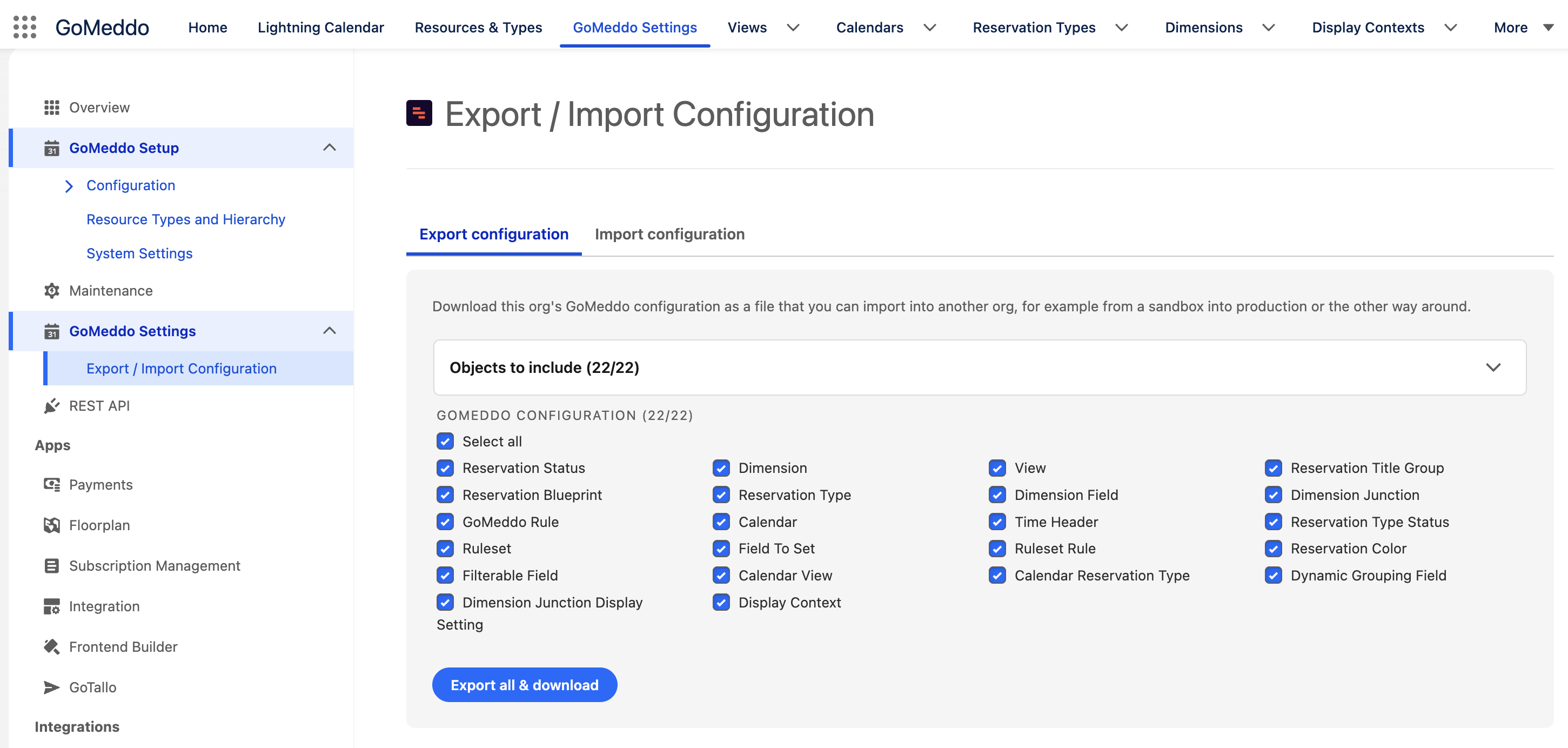
In the left-hand navigation, under GoMeddo Settings, select Export / Import Configuration.
-
Stay on the Export configuration tab.
-
Optionally expand Objects to include and deselect objects you do not want to move. By default everything is selected.
-
If you deselect an object that other selected objects depend on (for example Dimensions while keeping Dimension Fields), a Dependency warning appears: the deselected records are still written to the file, but only as references. They are never created or updated in the target org and must already exist there under the same name.
-
Click Export & download. A file called gomeddo-configuration-<date>.json is downloaded.
The file contains the full state of every exported record, including the GoMeddo version and org it came from. You can keep it as a backup of your configuration, or check it into version control.
Step 2: Import into the target org
-
Open GoMeddo Settings > Export / Import Configuration in the target org and switch to the Import configuration tab.
-
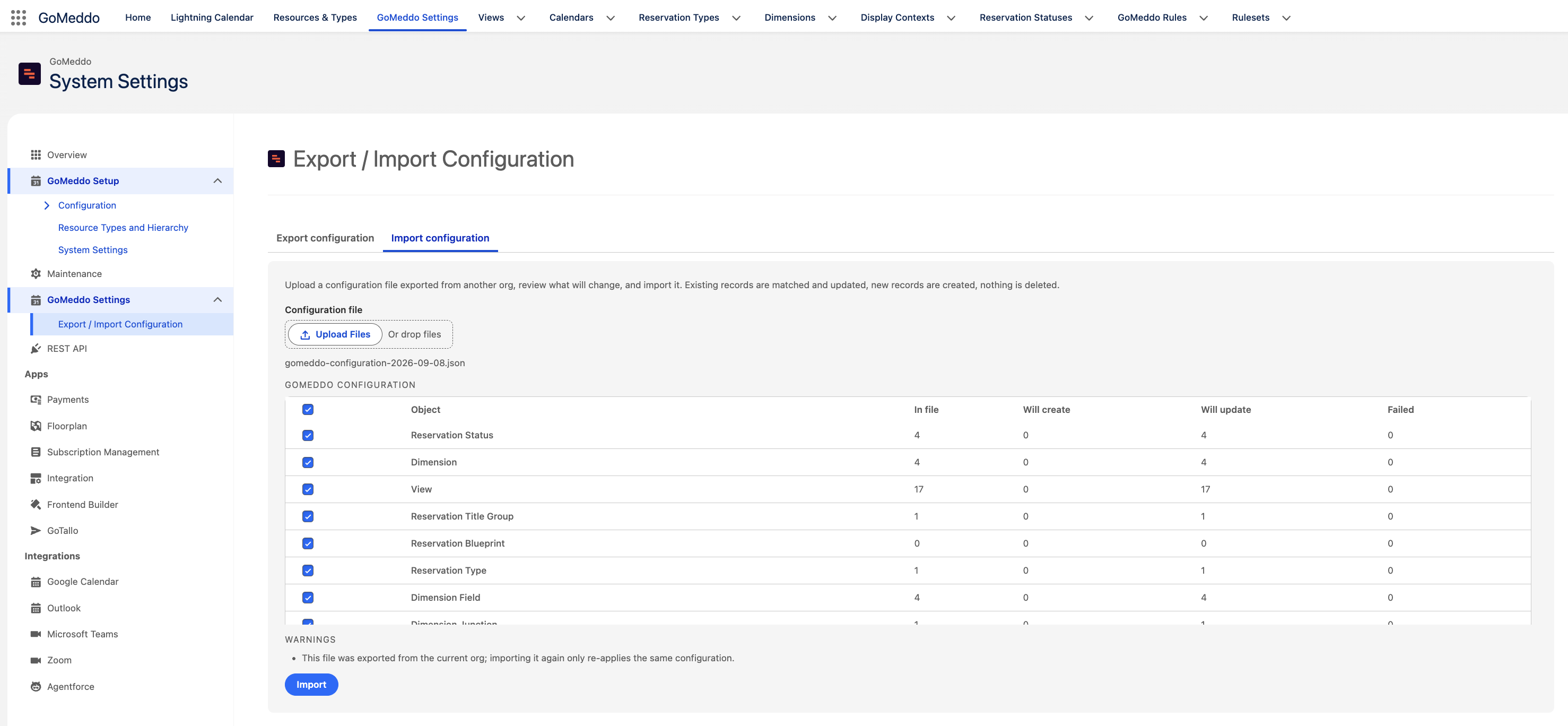
Under Configuration file, upload the exported file (maximum 5 MB).
-
GoMeddo analyses the file against the target org and shows a preview. Nothing has been changed yet. For every object in the file you see:
|
Column |
Meaning |
|
In file |
Number of records of this object in the file |
|
Will create |
Records that have no match in this org and will be created |
|
Will update |
Records that match an existing record and will update it |
|
Failed |
Records that cannot be imported (the reason is listed below the table) |
-
Use the checkboxes to leave out objects you do not want to import. The preview is recalculated after every change. As on the export side, deselecting an object that others depend on shows a Dependency warning.
-
Review the panels below the table:
-
These problems block the import — the import cannot run until these are fixed, for example a Filterable Field that refers to a field that does not exist in this org, or a file with more than 10,000 records. Fix the cause in the org or deselect the object.
-
References that won't resolve — configuration records that refer to a Resource, Resource Type, Staff, Service, Group, Hover Definition or Related List that could not be found by name in this org. The records are still imported, only the missing reference is left blank. Tick I understand these references won't resolve to continue, or create the missing records first and upload the file again.
-
Warnings — for example a version difference between the orgs, a file that was exported from this same org, or a record that appears twice in the file (only the first one is imported).
-
-
Click Import and confirm. Matching records will be updated and missing records will be created in this org. This cannot be undone.
-
The result table shows, per object, how many records were Created, Updated and Failed.
-
The configuration was imported successfully. — you are done.
-
The import failed and no changes were made. — one or more records were rejected (for example by a GoMeddo Rule that does not compile in this org). The whole import was rolled back. The errors below the table name the record and the reason. Fix the cause and import again.
-
Good to know
-
The file is the full state of a record. A field that is empty in the source org is also emptied in the target org when the record is updated. Checkboxes and required fields are never emptied.
-
GoMeddo Rules are recompiled on import. Their formulas are validated against the target org, exactly as when you save a rule by hand. A formula that refers to a field that does not exist in the target org makes the import fail with a clear error.
-
Record types (for example Conflict Rule vs. Filter Rule on GoMeddo Rules) are matched by their developer name and must exist in the target org.
-
Importing the same file twice is safe. The second import finds all records and updates them with the same values.
-
Limits. At most 10,000 records per object can be exported, and at most 10,000 records in total per import. Deselect objects or split the import when you hit this limit.
-
Both directions work. Sandbox to production is the most common direction, but production to sandbox (for example after a sandbox refresh) works the same way.
Recommended workflow
-
Finish and test your configuration in a sandbox.
-
Make sure the Resources, Resource Types, Staff, Services and Groups that your configuration refers to exist in production under the same names.
-
Export from the sandbox.
-
Import into production, check the preview and the References that won't resolve panel, then confirm.
-
Open a calendar and a reservation form in production to verify the result.
Troubleshooting
|
Message |
What to do |
|
You need the GoMeddo Admin permission set to export or import configuration. |
Assign the B25 Admin permission set to your user. |
|
This file is too large to import. |
The file is larger than 5 MB. Export fewer objects, or export in two parts. |
|
The file was exported from GoMeddo version X but this org runs Y. |
Not an error. Fields that do not exist in both versions are skipped. Preferably upgrade both orgs to the same version first. |
|
The selected objects contain N records, but a single import supports at most 10,000 records in total. |
Deselect objects and import in several rounds, respecting dependencies (Dimensions before Dimension Fields, Calendars before Calendar Views, and so on). |
|
"…": object … does not exist in this org / field does not exist on … in this org |
A Filterable Field or Dynamic Grouping Field refers to a field the target org does not have. Create the field, or deselect the object. |
|
… not found in this org; records using it will be imported without it |
Create the Resource, Resource Type, Staff, Service or Group with that exact name in the target org, then upload the file again. |
|
Record type … does not exist on … in this org. |
The target org runs an older GoMeddo version without that record type. Upgrade the target org. |
|
Multiple … records in this org share the same identifying values; only the first one is matched. |
The target org contains duplicate configuration records (for example two Calendars with the same name). Rename or delete the duplicate before importing. |
Related articles
-
Deploy Configuration records (SFDX Data Move Utility, for versions before 7.4)