
File Uploads
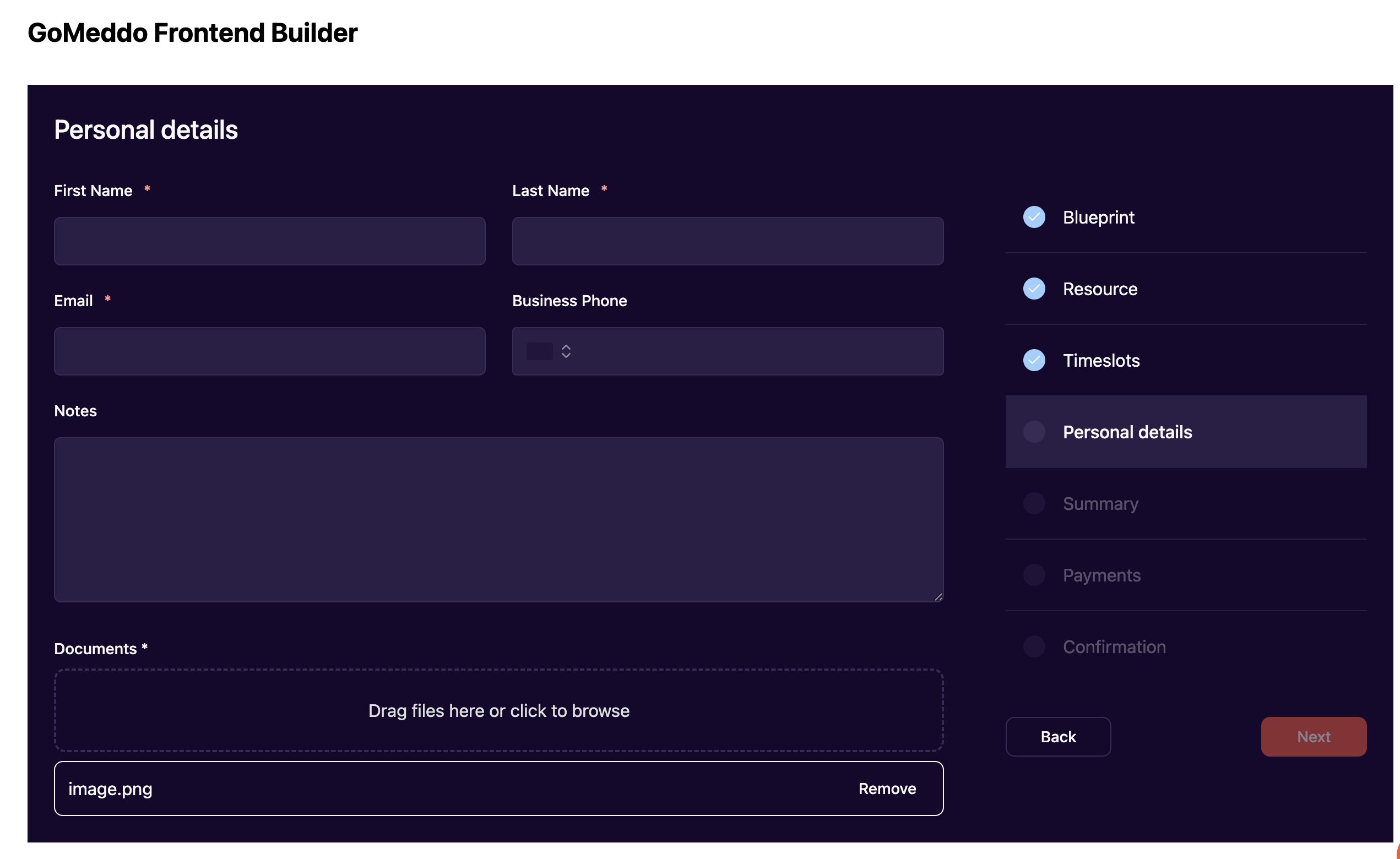
The GoMeddo Frontend Builder allows you to let users attach documents to their reservation, such as identification, signed forms, or supporting paperwork.
Uploaded documents are stored as standard Salesforce Files and linked to the Reservation record. They appear in the Files related list on the Reservation, where the normal Salesforce file sharing and permission rules apply.
File uploads are disabled by default and must be enabled per frontend.
Enabling File Uploads
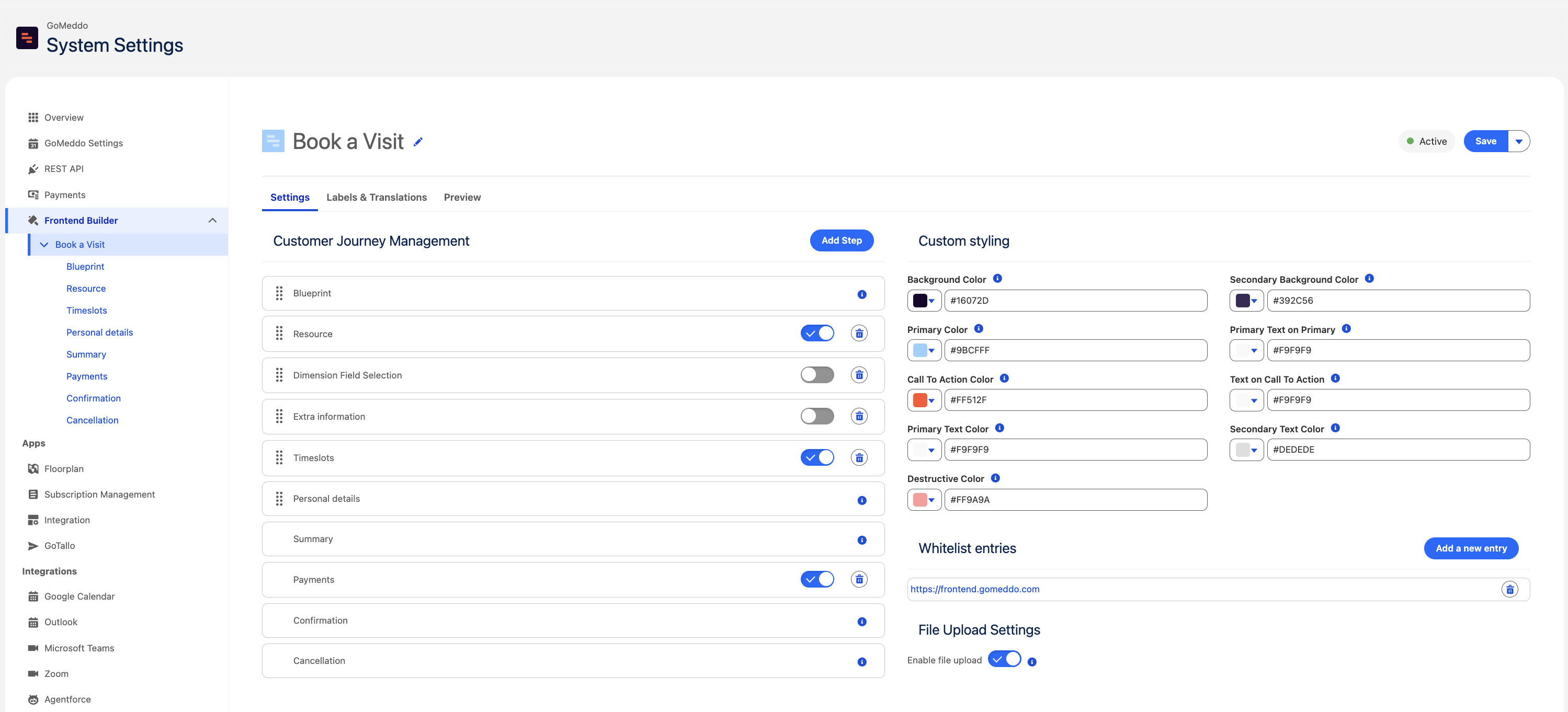
File uploads are enabled on the frontend configuration page.
-
Navigate to GoMeddo Settings and open Frontend Builder.
-
Open the frontend you want to configure.
-
In the File Upload Settings section, switch on Enable file upload.
-
Save the frontend.
Saving the frontend automatically updates the frontend's API key with the required file upload permission. No additional setup is needed.
When file uploads are disabled, any configured file upload fields are not shown to users, and upload requests for this frontend are rejected.
Adding a File Upload Field
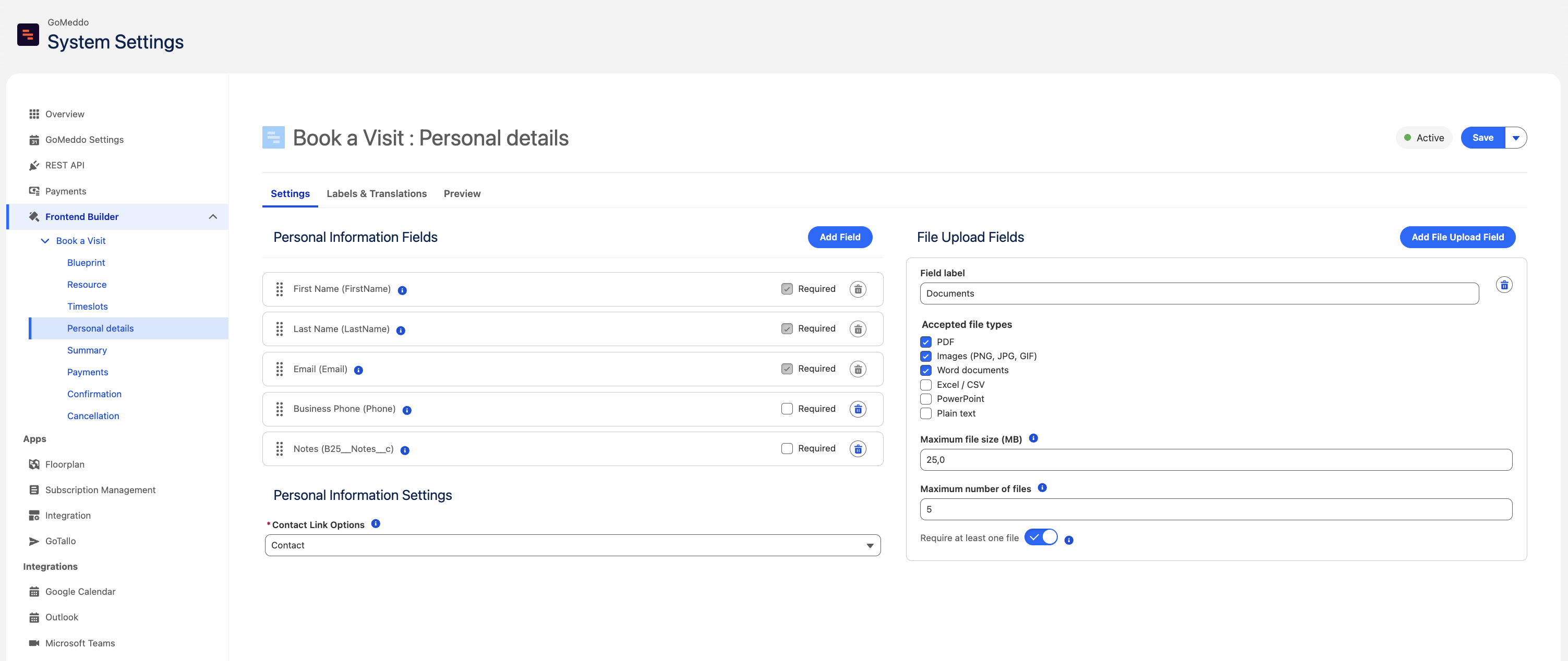
File upload fields can be added to the Custom Fields step and the Personal Information step.
-
Fields can be added by clicking the Add File Upload Field button in the File Upload Fields section of the step configuration.
-
Multiple file upload fields can be configured, each with its own label and rules. For example, one field for identification and another for a signed waiver.
-
Fields can be removed with the delete button on the field card.
Field Settings
Each file upload field has the following settings.
|
Setting |
Description |
Default |
|
Field label |
The label shown above the upload area in the frontend. |
Documents |
|
Accepted file types |
Users can only upload files of the selected types. See the table below for the file extensions each type allows. |
PDF, Images, Word documents |
|
Maximum file size (MB) |
Files larger than this are rejected. The maximum is 25 MB per file; this limit cannot be raised. |
25 |
|
Maximum number of files |
The maximum number of files a user can attach to one reservation (1–10). |
5 |
|
Require at least one file |
When enabled, users cannot continue to the next step without attaching at least one file. |
Off |
Accepted File Types
|
Type |
File extensions |
|
|
|
|
Images (PNG, JPG, GIF) |
png, jpg, jpeg, gif |
|
Word documents |
doc, docx |
|
Excel / CSV |
xls, xlsx, csv |
|
PowerPoint |
ppt, pptx |
|
Plain text |
txt |
The accepted file types are validated in the browser when the user selects a file, and validated again server-side when the file is uploaded.
What the User Sees
The file upload field is shown as a drop zone within the form step. Users can drag files onto it or click to browse. Selected files are listed below the drop zone and can be removed before submitting.
If a file does not match the configured rules, the user sees a clear message explaining whether the file type, file size, or number of files was the problem.
The files are uploaded after the reservation is created, on the confirmation step. While the upload is in progress, the user sees a “Submitting attachments…” indicator.
If an upload fails, it is retried automatically. If it still fails, the reservation is kept and the user is informed that some documents could not be uploaded, with a Retry upload button to try again.
Where the Files End Up
Each uploaded document is stored as a Salesforce File (ContentDocument) linked to the Reservation record. You can find them in the Files related list on the Reservation.
The Maximum number of files limit applies to the total number of files linked to the Reservation. Files attached to the Reservation by other means (for example, by automation in your org) count towards this limit.
Translations
The texts shown to the user can be customized per language via Labels & Translations. The following labels are used by file upload fields.
|
Label |
Default text |
|
Drop zone |
Drag files here or click to browse |
|
File type error |
This file type is not allowed. |
|
File size error |
The file exceeds the maximum size of {{maxSize}} MB. |
|
Too many files error |
You can upload at most {{maxFiles}} files. |
|
Upload in progress |
Submitting attachments… |
|
Upload failed warning |
Some documents could not be uploaded. Your reservation was created. |
|
Retry button |
Retry upload |
|
Remove button |
Remove |
The field label of each file upload field is translated per configured language in the step's translation settings, like other fields on the step.