
The GoMeddo Log stores errors that happen in GoMeddo, so you and GoMeddo support can see what went wrong and why without having to reproduce the problem. This page explains where to find log records, how to read them, and how to control what GoMeddo logs and how long it keeps it.
Before you start: the GoMeddo Log is available from GoMeddo 7.6. To view log records and change the log settings, you need the B25 Admin permission set.
What is the GoMeddo Log?
The GoMeddo Log is a custom object (B25__Log__c) that holds one record per logged event. GoMeddo writes these records in the background, separately from the action that failed. So a log record is kept even when the action itself is rolled back. For example, when a reservation can't be saved, the reservation is not created, but the error is still logged.
Logging never blocks or breaks the action being logged. If GoMeddo can't write a log record, the original action carries on as normal.
Log records appear a few seconds after the event, because they're written in the background. The Logged At field shows when the event happened, which can differ slightly from Created Date.
View log records
-
Click the App Launcher.
-
Search for GoMeddo Logs and select it.
-
Select the All list view.
-
Click a record to see its full details.
The All list view shows the most useful columns: Severity, Source, Operation, Correlation Id, Message, and Logged At. To show a GoMeddo Logs tab in your GoMeddo app, add it in Setup > App Manager.
Read a log record
GoMeddo fills in these fields. The B25 Admin permission set lets users view all log records but not edit or delete them.
|
Field Name |
Description |
|---|---|
|
Severity |
How serious the event is.
|
|
Message |
A description of what happened. For save errors, this lists each failure with the field it applies to. |
|
Source |
The GoMeddo package or component that produced the entry. |
|
Source Version |
The version of that package. |
|
Operation |
The action that was being performed. |
|
Record Id |
The ID of the record involved, when there is one. |
|
Correlation Id |
A key that links entries to one business action, such as a single booking attempt from a booking page. Use it to find all entries for that attempt. |
|
Transaction Id |
The Salesforce request ID of the transaction. Entries with the same Transaction Id happened in the same transaction. |
|
Running User |
The user whose action produced the entry. For a booking page, this is the site guest user. |
|
Logged At |
When the event happened. |
|
Exception Type |
The technical error type, when the entry came from an error. |
|
Stack Trace |
Technical detail for GoMeddo support, when available. |
|
Payload |
The request data at the time of the event. Only filled in when Store request payload in logs is enabled. |
When you contact support@gomeddo.com about an error, include the log record's Message, Correlation Id, and Transaction Id. This lets support find the cause without asking you to reproduce the problem.
Configure logging
Three settings control logging. All three work out of the box with their defaults, so you only need to change them when you want more detail or a different retention period.
-
Go to GoMeddo Settings > GoMeddo Setup > System Settings.
-
In the General section, find the log settings.
-
Change the settings you need.
-
Click Save.
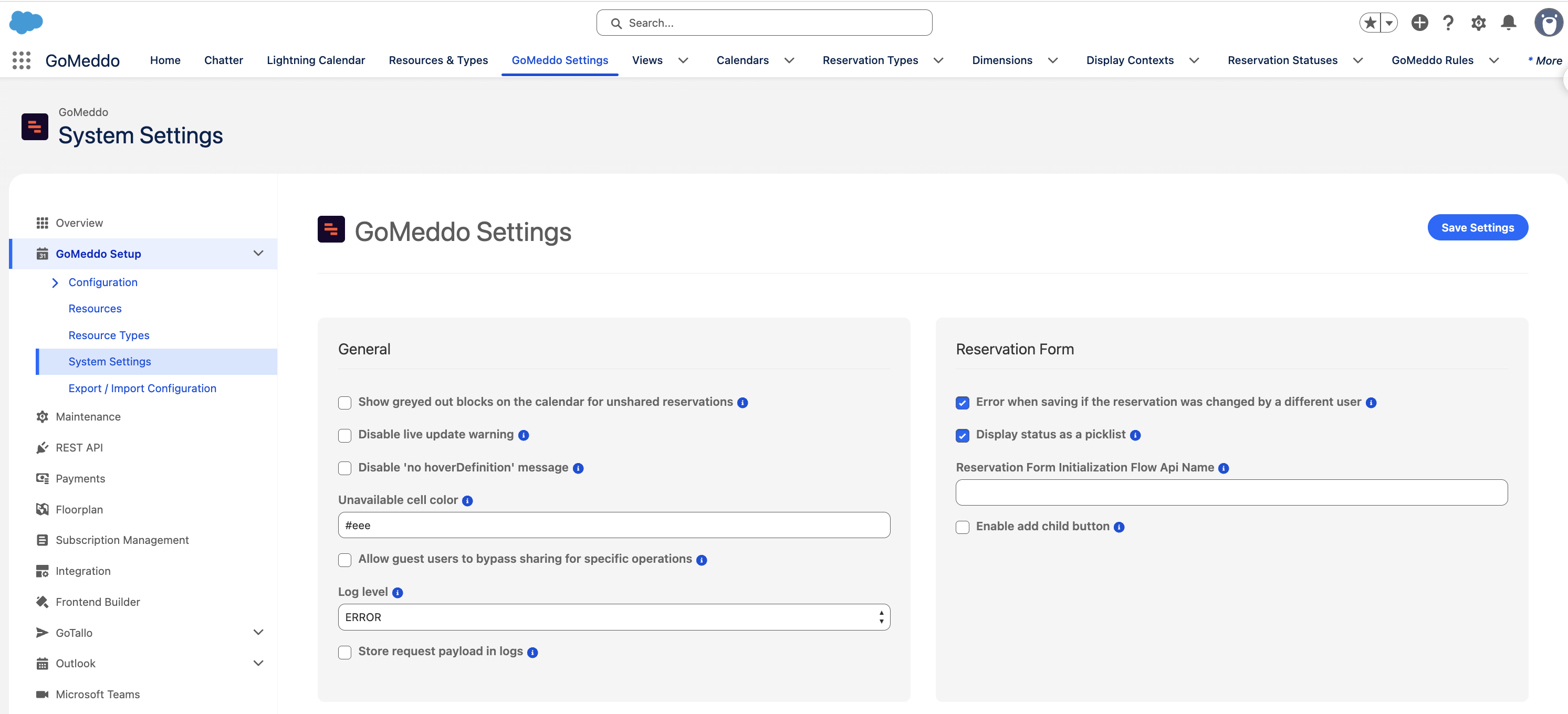
The new values apply to actions that start after you save.
|
Setting |
Default |
Description |
|---|---|---|
|
Log level |
ERROR |
The minimum severity GoMeddo writes to the log.
|
|
Store request payload in logs |
Off |
When enabled, GoMeddo stores the request data of a logged action in the Payload field. Leave this off unless GoMeddo support asks you to enable it. |
|
Log retention (days) |
30 |
How many days GoMeddo keeps log records. Enter a value from 1 to 365. Records older than this are deleted every night. |
The Payload field can contain personal data of the people making reservations, such as names and email addresses. If you enable Store request payload in logs for troubleshooting, disable it again when you're done. Records that already hold a payload are deleted at the end of the retention period.
How log retention works
GoMeddo schedules a nightly job, Job_PurgeLogs, that deletes log records older than Log retention (days). GoMeddo schedules it automatically when you install or upgrade the package, in production and in sandboxes. You can see it under Setup > Scheduled Jobs. Don't delete this job, otherwise log records are never cleaned up and keep using data storage.
If you deleted the job by accident, reinstalling or upgrading GoMeddo schedules it again.
Write to the GoMeddo Log from your own code
Developers can write entries to the GoMeddo Log from custom Apex, so errors in your own automation appear next to GoMeddo's. Entries follow the same Log level and payload settings.
Use B25.Logger.fromException to build an entry from an exception, B25.Logger.log to add it, and B25.Logger.flush at the end of your transaction to write any buffered entries. GoMeddo writes errors right away; warnings and info entries are kept until you call flush, so call it in a finally block.
global with sharing class MyReservationAutomation {
    global static void run(List<B25__Reservation__c> reservations) {
        try {
            // Your logic here.
        } catch (Exception ex) {
            B25.LogEntry entry = B25.Logger.fromException(ex);
            entry.source = 'MyReservationAutomation';
            entry.operation = 'run';
            B25.Logger.log(entry);
            throw ex;
        } finally {
            B25.Logger.flush();
        }
    }
}
B25.LogEntry has these fields you can set:
|
Name |
Type |
Description |
|---|---|---|
|
|
|
ERROR, WARNING, or INFO. Defaults to ERROR when empty. |
|
|
String |
What happened. |
|
|
String |
Your package or component name. |
|
|
String |
Your package or component version. |
|
|
String |
The action being performed. |
|
|
String |
A key that links entries to one business action. |
|
|
String |
The ID of the record involved. |
|
|
String |
Set by |
|
|
String |
Set by |
|
|
Object |
Any data that can be serialized to JSON. Stored only when Store request payload in logs is enabled. |
To check the settings before doing expensive work, use B25.Logger.isEnabled() (false when Log level is NONE) and B25.Logger.isPayloadEnabled().
If your package must not depend on GoMeddo being installed, call the log through B25.LoggerCallable instead. It accepts the actions log, flush, isEnabled, and isPayloadEnabled. For log, pass the B25.LogEntry field names as keys, with severity as a string.
Type loggerType = Type.forName('B25', 'LoggerCallable');
if (loggerType != null) {
    System.Callable logger = (System.Callable) loggerType.newInstance();
    logger.call('log', new Map<String, Object>{
        'severity' => 'ERROR',
        'source' => 'MyPackage',
        'message' => 'Could not sync the reservation.'
    });
    logger.call('flush', null);
}