
This functionality is intended to work in the API/Timeslot picker.
If you want this to work inside of GoMeddo / Salesforce on a calendar, you will need to implement custom form logic to trigger the creation of child reservations.
If you want to expose Parent & Child reservations to an external website or mobile app, it starts with creating a Reservation Blueprint. This basically determines what the actual parent and child reservation combination consists of and creates the possible combinations for the API to consider and which fields should be set on which reservation.
Try to make these templates as specific as possible, as they determine how many combinations will need to be conflict checked. This is a very performance demanding task for Salesforce, so try to keep the options as limited as possible.
Extending the number of staff/resources and or sub-reservations multiplies very quickly.
Blueprint
The blueprint offers you the possibility to determine in which order a parent/child reservation combination should be made and how long it takes. You can set a duration and use the Order field to control the sequence in which the child reservations should take place. If you want some buffer time between child reservations, give them a Reservation Type which has a buffer.
If the blueprint has Child of Parent Resource and Available at Parent Resource methods a Resource must be present in the B25__Resource__c lookup on the parent reservation.
Fields to set
The blueprints also offers the possibility to determine which fields to set on the parent or child reservation. This lets you specify what Reservation Type it needs to have, if it needs a Staff and or Resource for example.
The blueprint offers 6 methods to set fields:
|
Method to get value |
Description |
Example Usage |
|---|---|---|
|
Copy from parent reservation |
Allows you to copy the value from the parent reservation |
Add all reservations to the same resource |
|
Literal value |
Allows you to put a literal value or id in a field. GoMeddo will attempt to cast the specified value to a supported data type if applicable (and will otherwise fall back to treating it as a string). Supported data types:
|
|
|
Record by name |
Allows you to set a record by name in the field |
Set a reservation type |
|
Child of Parent Resource |
Allows you to specify that the Resource in the child reservation needs to be a child of the parent reservation resource. |
Allows you to specify that the Resource in the child reservation needs to be a child of the parent reservation resource. |
|
Available at Parent Resource |
Allows you to specify staff or other dimension should be available using in the Parent Resource using a Multi-Dimensional Availabilities |
Only staff members available in Amsterdam should be considered. |
|
Records matching condition |
Allows you to specify that the dimension records to consider are all records matching a Condition. Unlike the two methods above, this does not look at the parent reservation's resource, so it can be used on blueprints that have no Resource at all. Set the Filter Condition field to the Condition Name of the Condition you want to use. |
Only staff members with the Advisor role should be considered, regardless of location. |
Filter rule
On both “Child of Parent Resource, Available at Parent Resource, and Records matching condition you can apply dimension filters. This allows you to narrow down which dimension records need to be considered. For example you can say, Child reservation 1, needs a resource of type “intake room” which is available in the parent resource. Or you could say, Only Staff members of type “Nurse” should be considered in Child reservation 1.
Filter Condition
When a field uses Records matching condition, the Filter Condition field holds the Condition Name of a Condition custom metadata record. GoMeddo turns that Condition into a query against the field's object and uses the matching records as the candidates for this field.
A few rules apply in this context:
-
The fields used in the Condition Elements must exist on the object of the Field to Set. For example, a Condition used on a Staff field can only refer to fields on
B25__Staff__c(relationship fields such asB25__Account__r.Typeare allowed). -
The supported operators are
=,!=,<,>,<=and>=. -
Placeholder values such as
{B25__Contact__r.Gender__c}are not supported here. Placeholders compare against another reservation, and there is no other reservation involved when GoMeddo is selecting candidate records. -
If the Condition has no Condition Logic, all its Condition Elements are combined with AND.
-
Each field using this method costs one extra query, so reuse a single Condition across fields where you can.
If the Filter Condition is empty, points at a Condition that does not exist, or refers to a field that does not exist on the object, GoMeddo returns an error explaining which field and Condition caused it.
Example to for a setup:
-
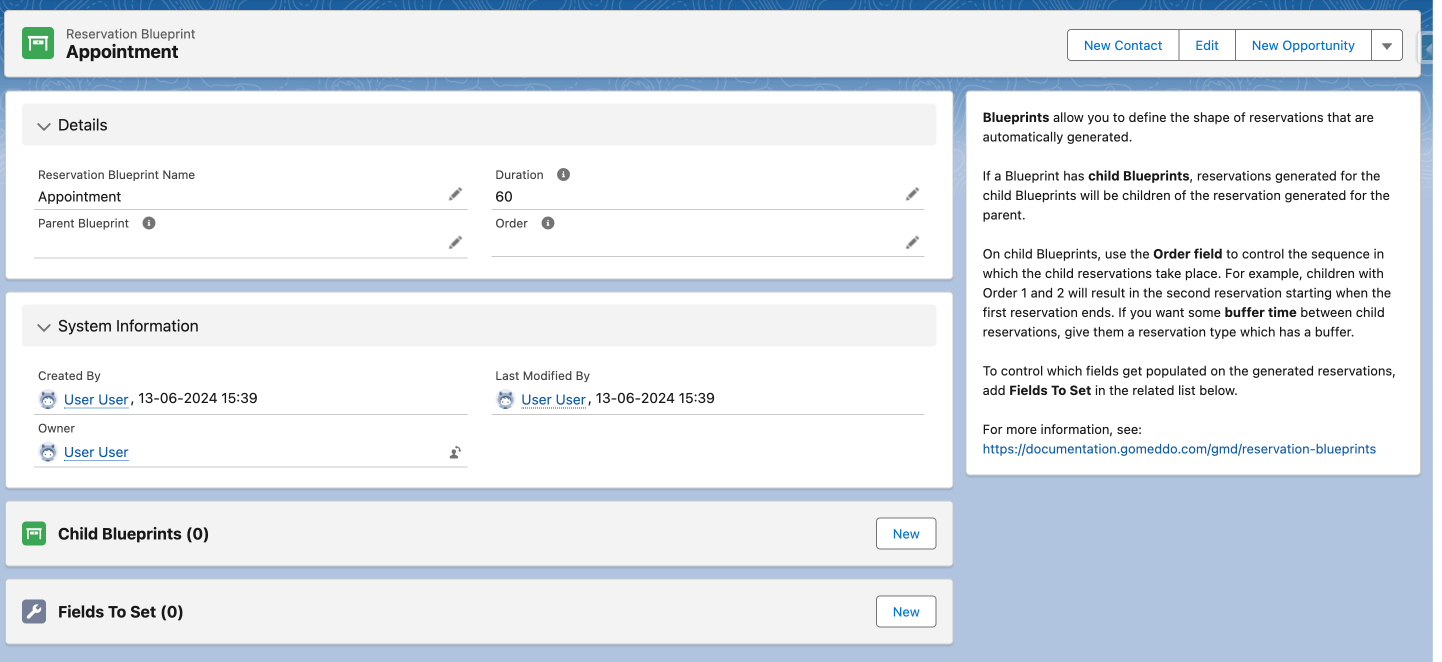
Go to Reservation Blueprints
-
Create a new blueprint called Appointment to create the parent
-
Give it a duration of 60 minutes and a Name and save
-
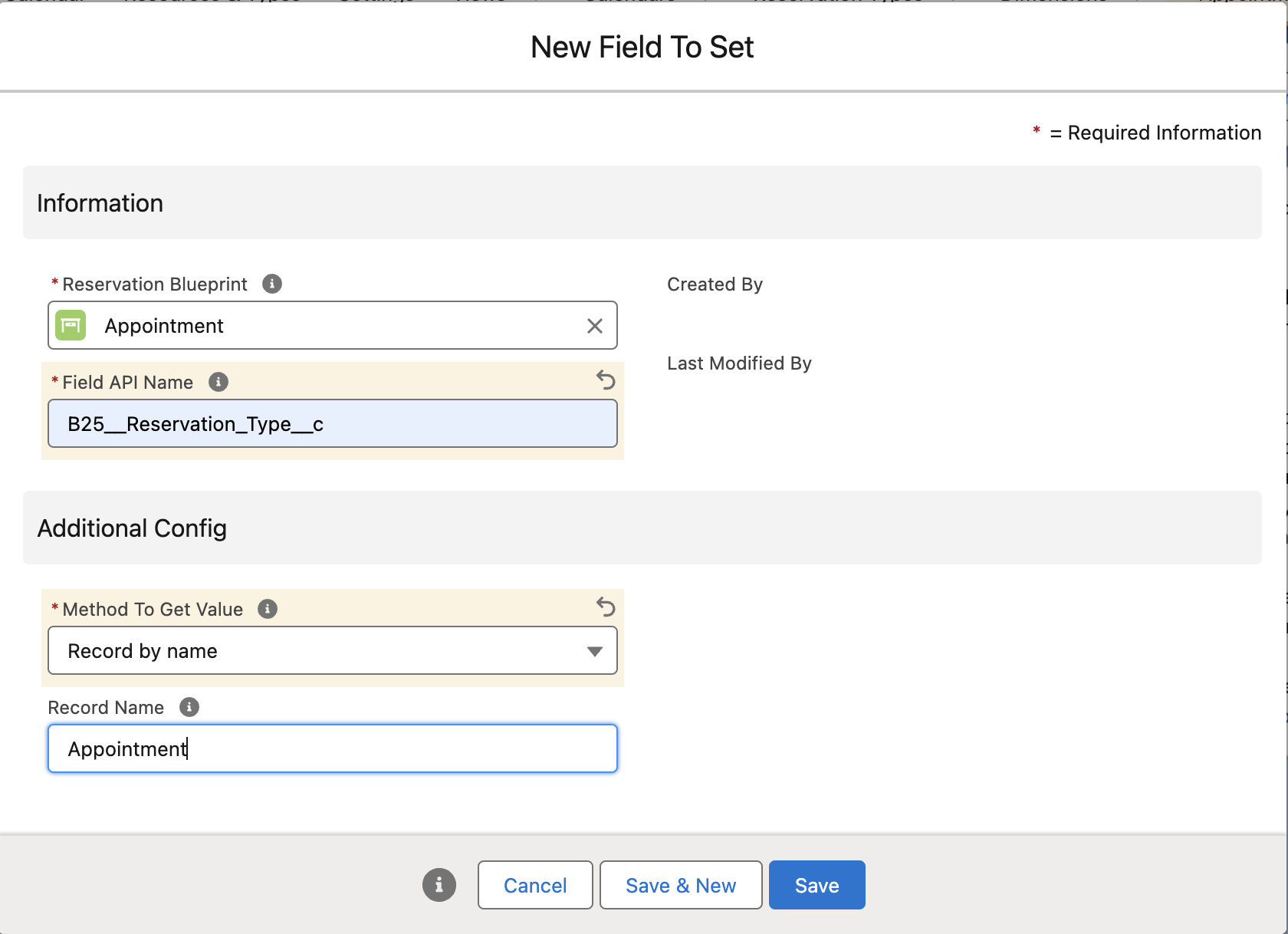
Go to fields to set
-
Add reservation type: Appointment
-
-
Create a new child blueprint called Intake
-
Give it a duration of 15 minutes
-
Give it a order, this determines the sequence in which the reservations take place, 1 in this case
-
Go to fields to set
-
Add reservation type: Intake
-
Add fields to be set: Reservation Type
-
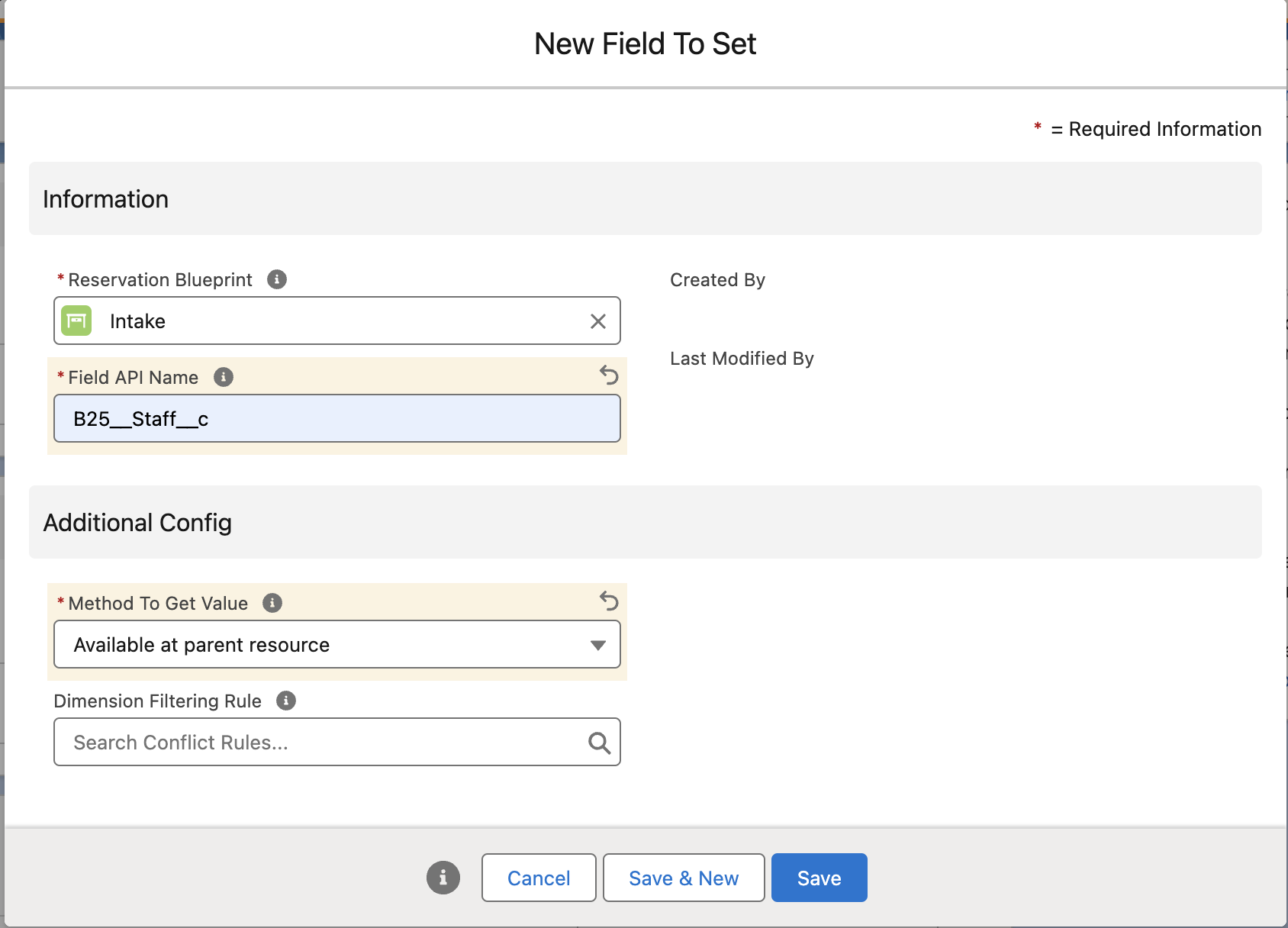
Add fields to set Staff Available in parent resource. ( this only takes into account staff members available in a resource using Multi-Dimensional Availabilities
-
-
-
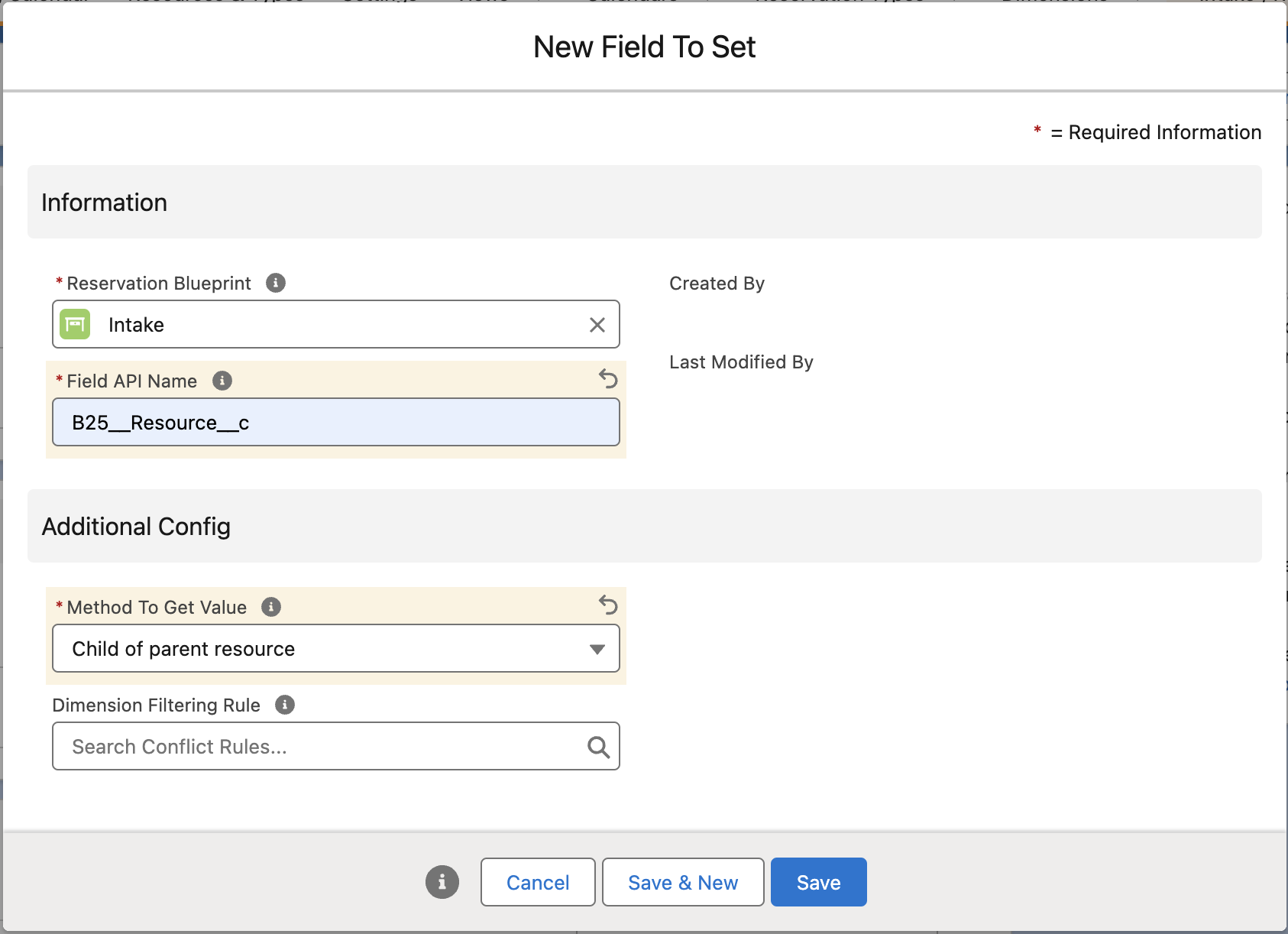
Then add which resource this child needs to have. In this case it needs to be a child resource of the resource of the Parent reservation.
Usefull links if you want to use Blueprints using the API: