
A Reservation Blueprint defines the structure of the reservation that GoMeddo creates when a customer completes a booking in the Frontend Builder. It tells GoMeddo what fields to set, which dimensions (such as resources or staff) to include, and how long the appointment is.
For more information check Configuring Blueprints for the Frontend Builder.
Blueprint Wizard
The Blueprint Wizard guides you through creating a Reservation Blueprint from start to finish. Access it via GoMeddo Settings > Blueprints > New Blueprint.
First, select a Blueprint type. The Wizard only creates Frontend Builder Blueprints. If you select Parent/Child, a popup directs you to create the Blueprint outside the Wizard. When Frontend Builder is selected, choose a use case. This determines the default fields created for your Blueprint. You can remove or add fields to set as needed later.
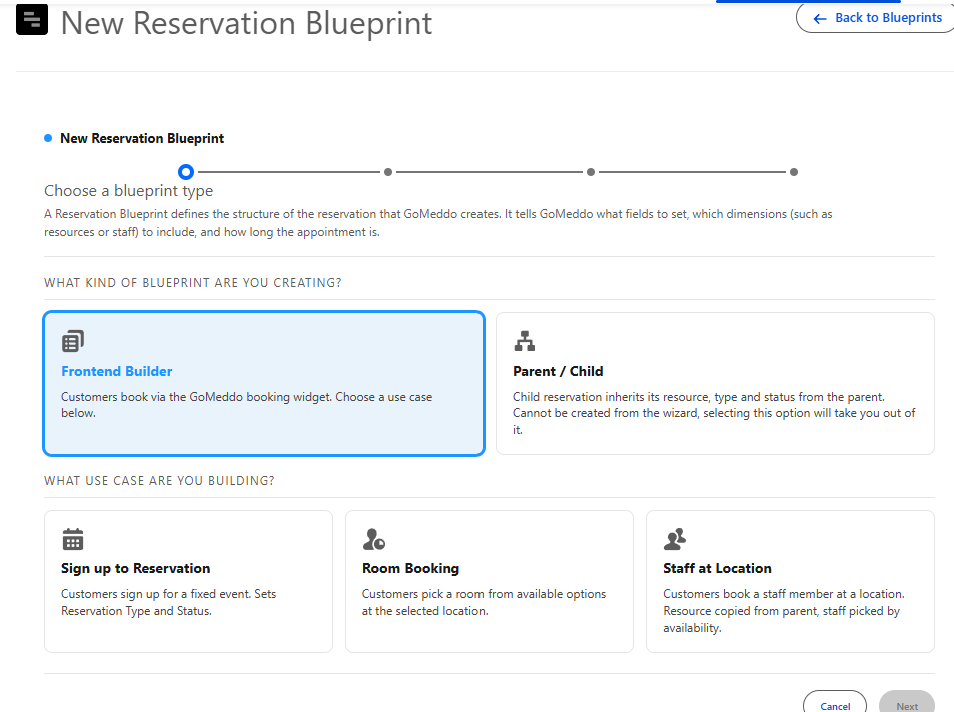
Use Cases
|
Name |
Description |
Fields to Set |
|---|---|---|
|
Sign up to Reservation |
Customers can sign up to a reservation. |
Reservation Type and Status |
|
Room Booking |
Customers pick an available room to create a reservation. |
Reservation Type, Status, and Resource. |
|
Staff at Location |
Customers pick a staff and room to create a reservation. |
Reservation Type, Status, Resource, and Staff. |
Additional Information
Next, users decide whether to add Related List to Set. These are available for customers to complete when creating a reservation. For example, adding Reservation Contacts allows users to select multiple contacts for the reservation on creation.
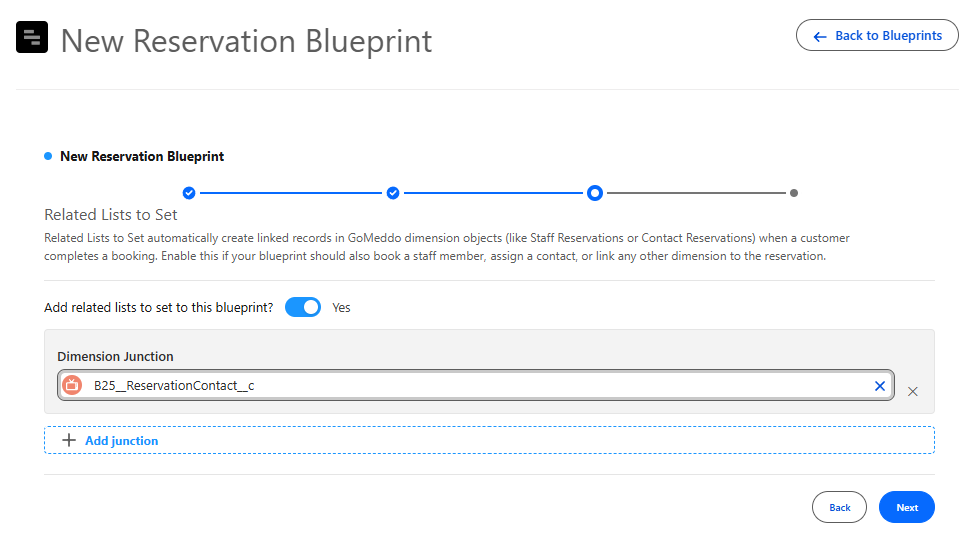
After completing all information, a summary page appears for users to review data before saving. Users can optionally return to update any blueprint information.
The Wizard creates the blueprint record along with its fields to set and any added related lists to set.