
The GoMeddo settings page (GoMeddo Setup) covers everything you need to get GoMeddo running. It lists tasks you can complete at your own pace and mark as ready to track progress on the Configuration Progress bar when the solution meets your needs. GoMeddo also provides sensible default records for most steps; if a default suits you, mark the step complete and continue. You can revisit and customize later.
Some Setup steps require no input, but documentation is available if you choose to customize.
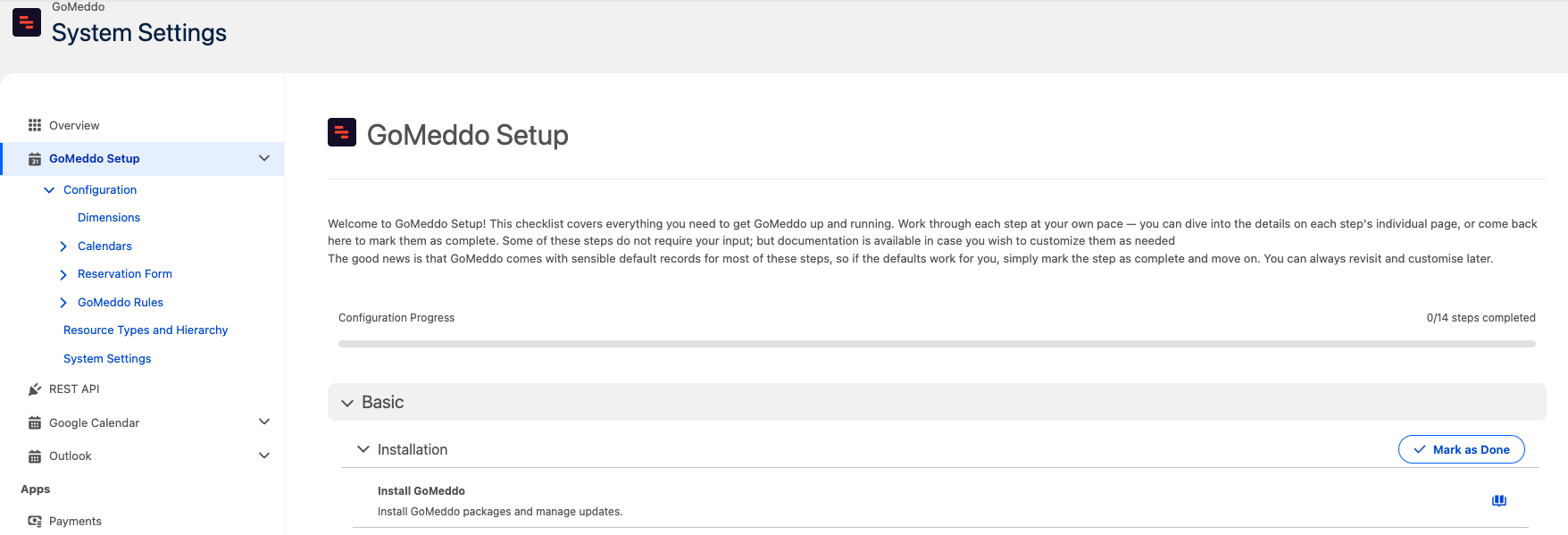
Setup Page Structure
Each topic of any section that can be actioned on will show up as an hyperlink that, when clicked, will take you to the main Configuration page for that section with extra information and ways to configure the step. The main GoMeddo Setup page is divided in 3 main sections:
Basic
This section covers the essential steps to configure GoMeddo: Resources, the Reservation Form, Calendars, Experience Cloud, and Reporting. If the defaults suit you, review and mark the step as done.
Advanced
This section covers the Advanced Reservation Form and Advanced Calendars & UI. These are recommended after the basic configuration has been completed.
Extra
This section only contains documentation to extra topics that might be of interest but that are not usually essential for your GoMeddo configuration. All of them include documentation only.
Individual Pages
Each main section contains topics with a button to mark them as done. Topics may include nested subtopics that link to documentation (book icon). If a topic appears as a hyperlink, a dedicated page exists with more information and configuration options.

Inside each of these individual pages you can find extra information about the topic, documentation, a table showing the existing records, and a button to create more.
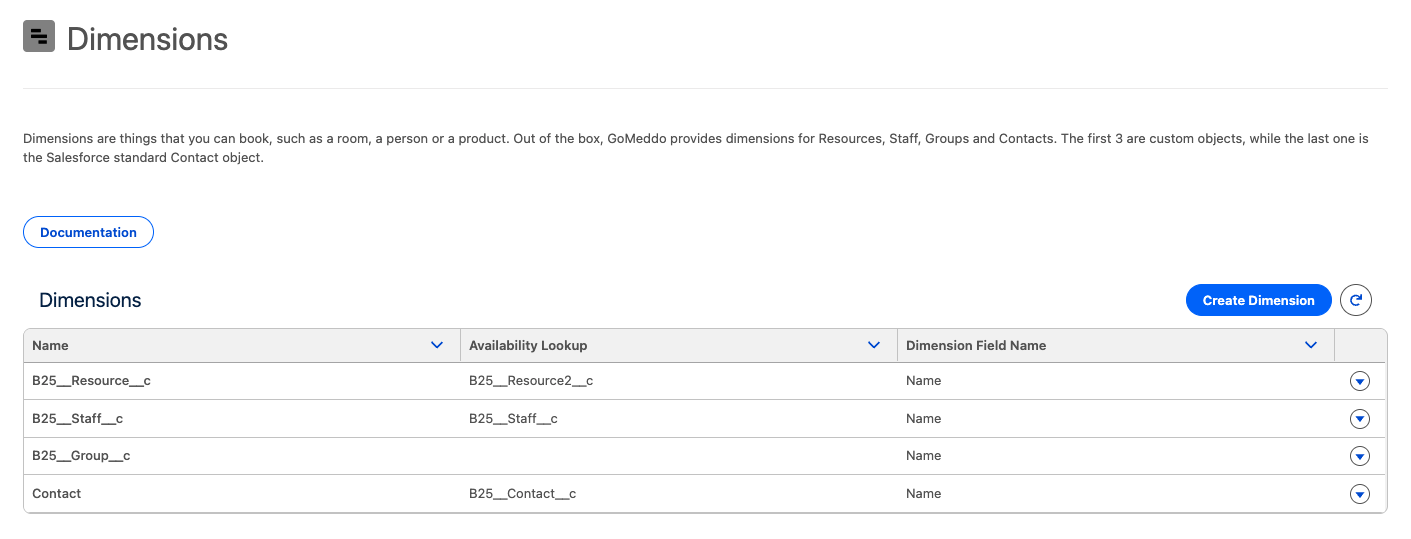
Most of the times, the button to create the record will just give you a simple pop-up just like the one you would get at their individual object tabs to create the record. But there are a few exceptions.
Create Dimension in the Dimensions page - Dimension Wizard.
Create a New Rule in the Rules page - Booking Restriction Rule Editor
New Blueprint in Reservation Blueprint - Blueprint Wizard