
Before you can take reservations in GoMeddo, you build two hierarchies. The Resource Type hierarchy describes the structure of your organization in general terms, for example Country, City, Building, and Meeting Room. The Resource hierarchy fills that structure with your actual locations and rooms, for example which meeting rooms are in which building. This guide shows you how to set up both on the GoMeddo Settings page.
Before you start: this guide applies to GoMeddo 7.6 or later and assumes you have the GoMeddo Admin permission set.
How the two hierarchies relate
A Resource Type describes a Resource, such as Building or Meeting Room. A Resource is a specific instance of a type, such as Head Office or Meeting Room 2.01. Each Resource has exactly one Resource Type, and its place in the Resource hierarchy follows the type hierarchy: a resource of type Meeting Room can only sit under a resource whose type is the parent type of Meeting Room.
Both hierarchies have exactly 1 root. Build the Resource Type hierarchy first, because you can't create a resource until its type exists.
Remove the sample data
A new installation creates a Resource Type called Rentable Resource and 2 resources, Sample Resource 1 and Sample Resource 2. You can skip this step if you want to keep them.
-
In the GoMeddo app, go to GoMeddo Settings > Resources.
-
Select Sample Resource 1 in the tree.
-
Click the menu button next to Edit and select Delete.
-
Click OK to confirm.
-
Repeat for Sample Resource 2.
-
Go to Resource Types and delete Rentable Resource the same way.
Delete the resources before the type. Delete is unavailable for a resource that has child resources or reservations, and for a type that has child types or resources.
Deleting a resource also deletes its availabilities and layouts. This can't be undone.
Build the Resource Type hierarchy
-
In the GoMeddo app, go to GoMeddo Settings > Resource Types.
-
If no types exist yet, click New Resource Type to create the root type.
-
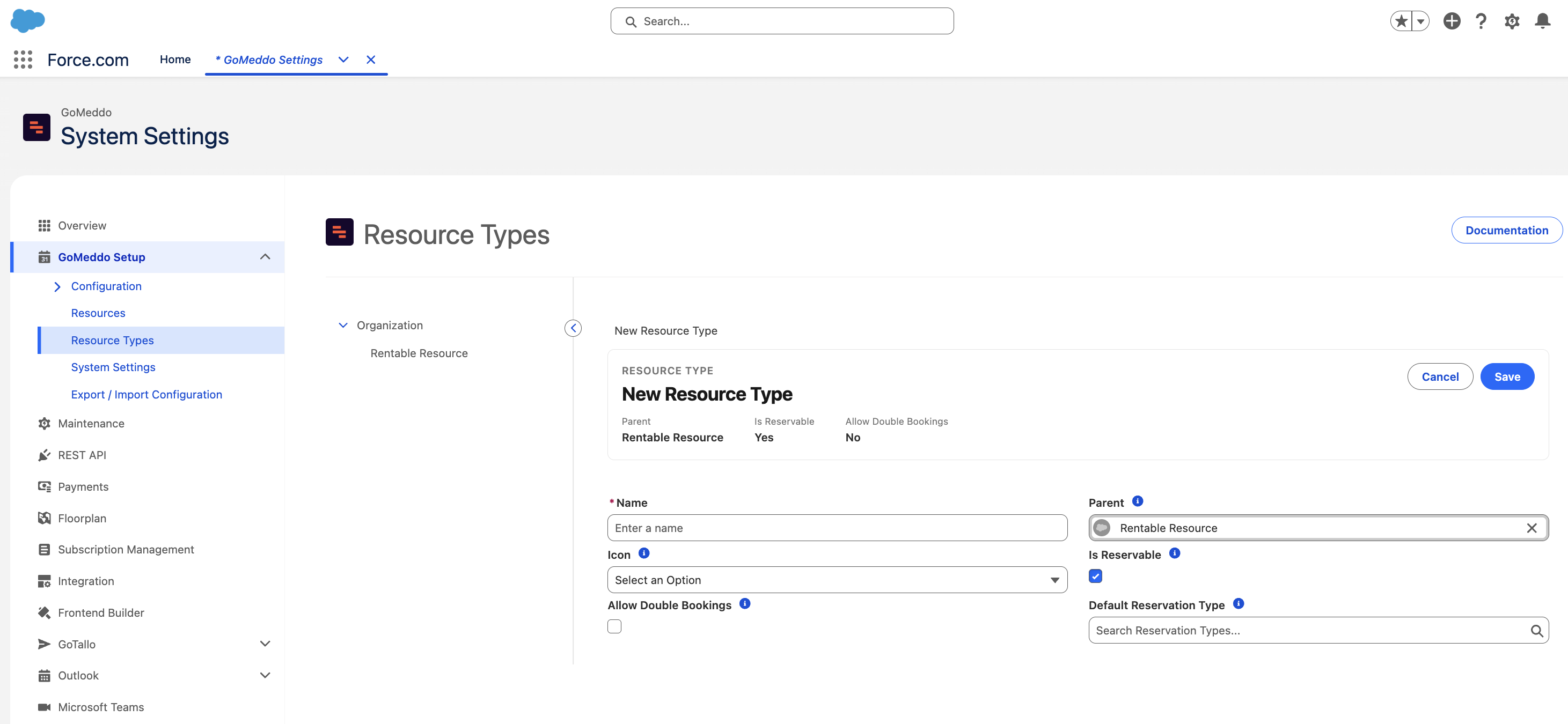
Enter a Name and select an Icon.
-
Click Save.
The new type appears in the tree on the left and its details appear on the right.
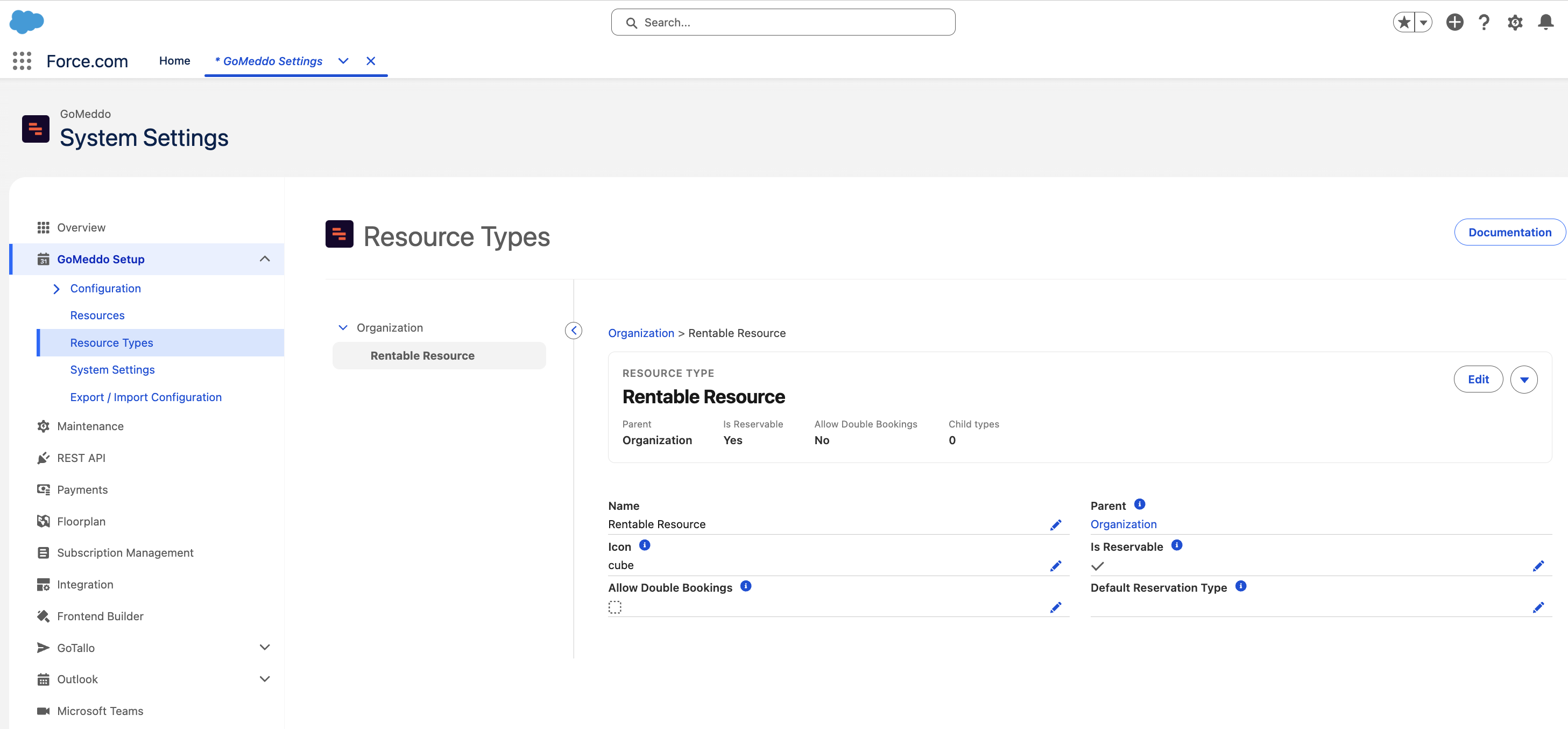
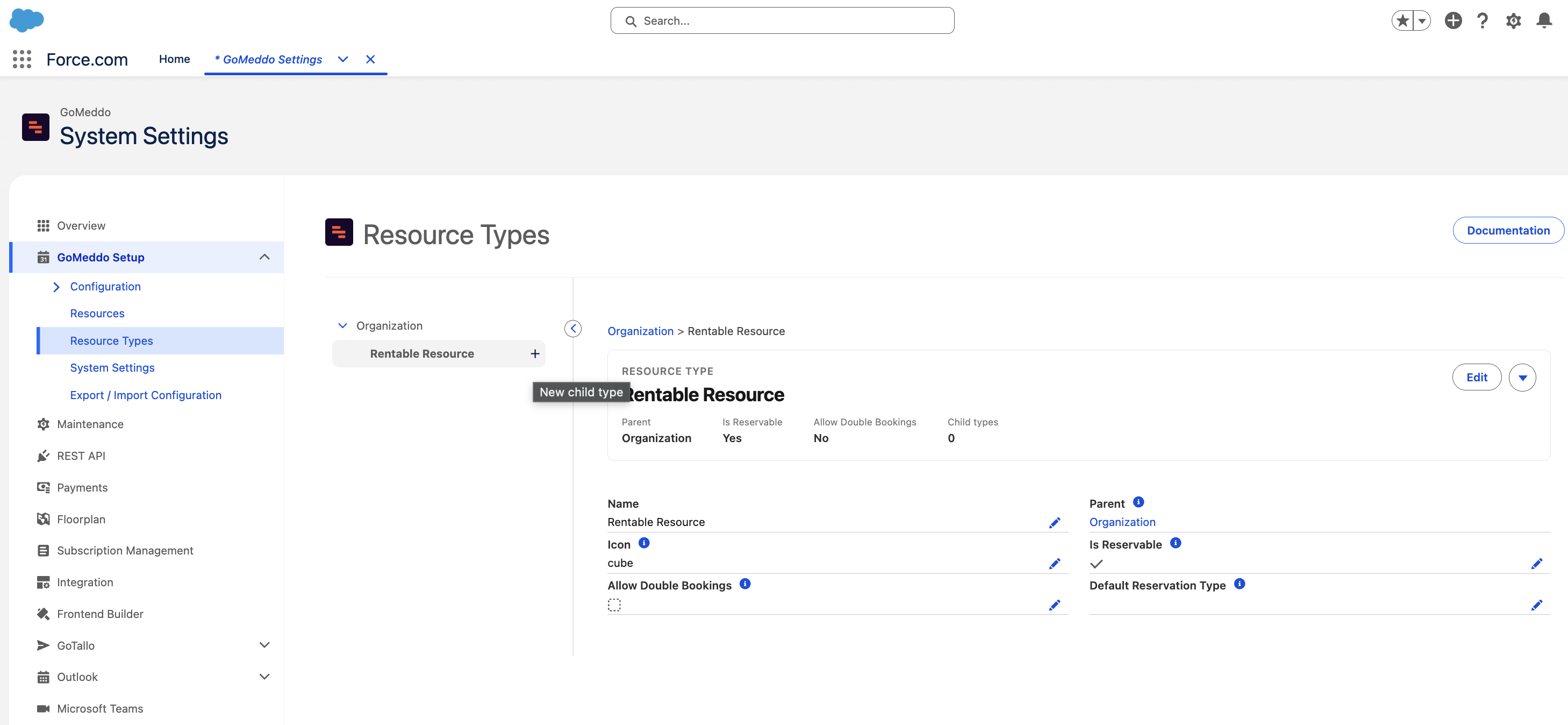
To add a type below an existing one, hover over the type in the tree and click +, or select the type and choose New child type from the menu next to Edit. Every type can have child types. Click the arrow next to a type to expand its children, and click a breadcrumb above the form to jump to an ancestor.
Resource Type fields
|
Field Name |
Required |
Description |
|---|---|---|
|
Name |
Yes |
The name of the type, for example Building or Meeting Room. |
|
Parent |
No |
The type this type sits under. GoMeddo sets it when you create a child type, and you can't change it afterwards. The root type has no parent. |
|
Icon |
No |
The icon shown for resources of this type, including on the calendar. |
|
Currency |
No |
Only shown in multi-currency orgs. |
|
Is Reservable |
No |
Select this for types that can be booked on the calendar and in the widget, such as Meeting Room. Leave it cleared for grouping types such as Building. Cleared by default. |
|
Allow Double Bookings |
No |
Only shown for reservable types. Allows overlapping reservations on resources of this type. |
|
Default Reservation Type |
No |
Only shown for reservable types. The Reservation Type preselected when someone books a resource of this type. |
Fields your admin adds to the Resource Type Custom Fields field set appear in an extra section below these fields.
Build the Resource hierarchy
-
Go to GoMeddo Settings > Resources.
-
If no resources exist yet, click New Resource to create the root resource.
-
Enter a Resource Name.
-
Select a Timezone.
-
Click Save.
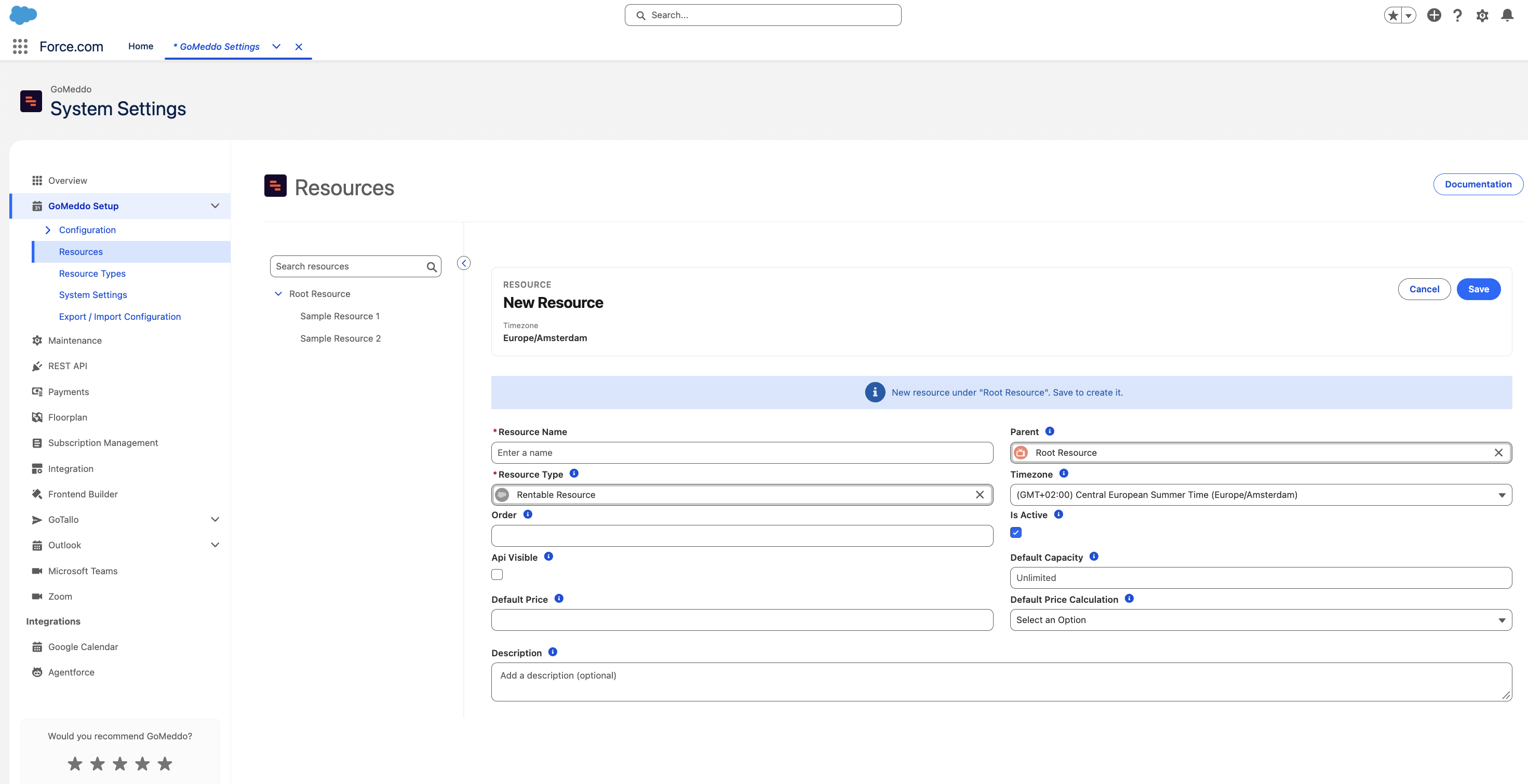
To add a resource below an existing one, hover over it in the tree and click +, or select it and choose New child from the menu next to Edit. Then select the Resource Type: the list only offers the child types of the parent's type. A new child resource takes its parent's timezone unless you change it.
To find a resource in a large hierarchy, type part of its name in Search resources above the tree. Each result shows its path, and selecting one opens it in the tree. Search shows the first 50 matches. When you select a resource directly below the root, the tree narrows to that branch. Click Show all to see the full tree again.
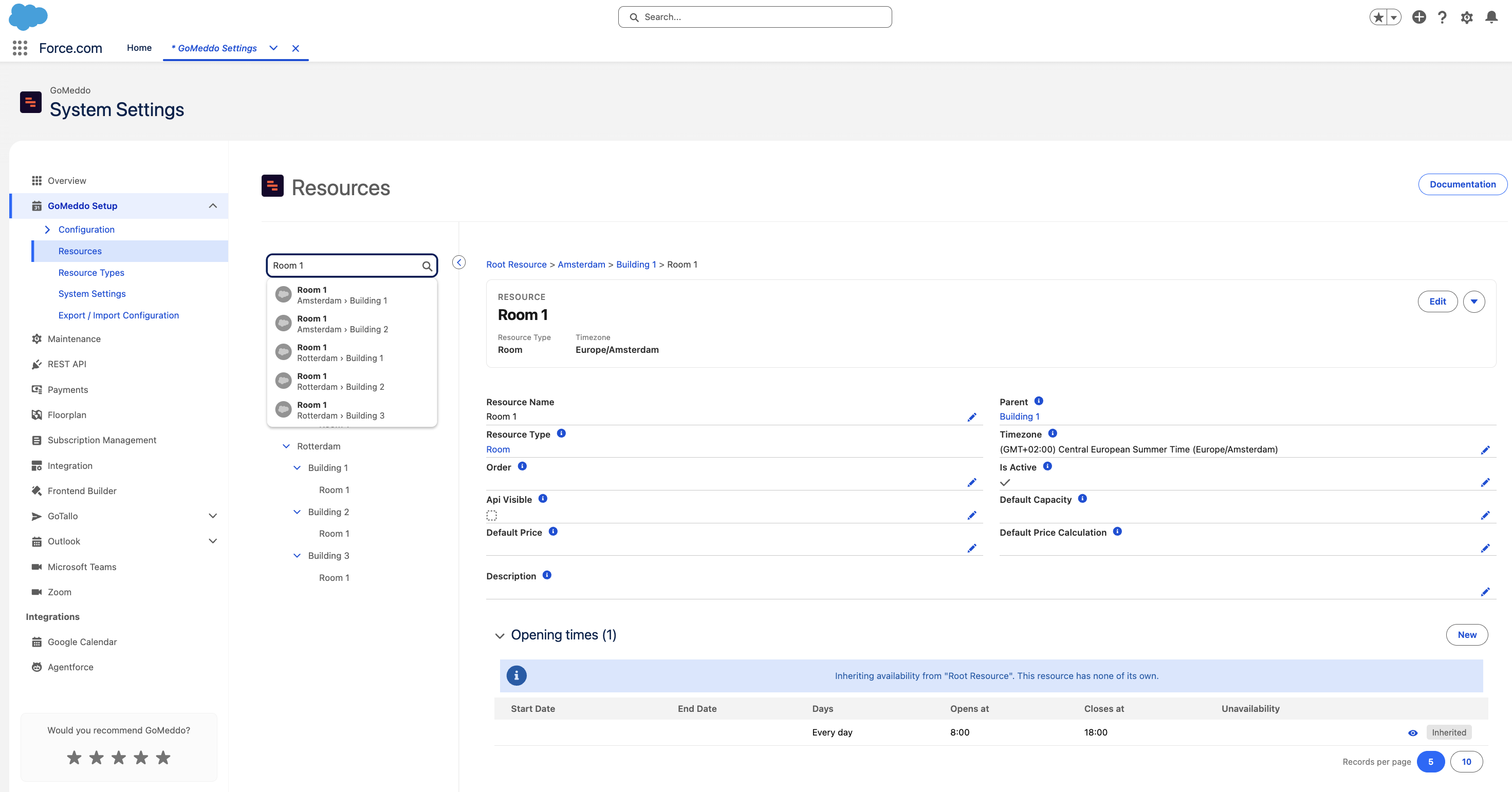
To create a resource that is similar to an existing one, select it and choose Clone from the menu. The copy is not saved until you click Save, and you can pick a different parent for it before saving.
Resource fields
|
Field Name |
Required |
Description |
|---|---|---|
|
Resource Name |
Yes |
The name shown on the calendar and in search, for example Meeting Room 2.01. |
|
Parent |
No |
The resource this one sits under. You can only pick resources of the parent type. You can't change it after saving. |
|
Resource Type |
Yes |
The type of this resource. You can't change it after saving. |
|
Timezone |
No |
The timezone the resource's opening hours and reservations are expressed in. Defaults to the parent's timezone. |
|
Order |
No |
The position among sibling resources. Resources without an order appear after those with one, sorted by name. |
|
Is Active |
No |
Selected by default. You can't activate a resource whose parent is inactive. |
|
Api Visible |
No |
[TODO: one-line description of what this controls for customers.] |
|
Currency |
No |
Only shown in multi-currency orgs. |
|
Default Capacity |
No |
Only shown for reservable types. Leave empty for unlimited capacity. |
|
Default Price |
No |
Only shown for reservable types when reservation pricing is enabled. |
|
Default Price Calculation |
No |
Only shown for reservable types when reservation pricing is enabled. |
|
Description |
No |
Optional free text about the resource. |
Fields in the Resource Custom Fields field set appear below these fields. You can also show fields for one type only: create a Resource field set whose label matches the Resource Type name exactly, and its fields appear on resources of that type.
You can't move an existing resource to a different parent from this page. To place a resource elsewhere, clone it under the new parent and delete the original.
Set opening times
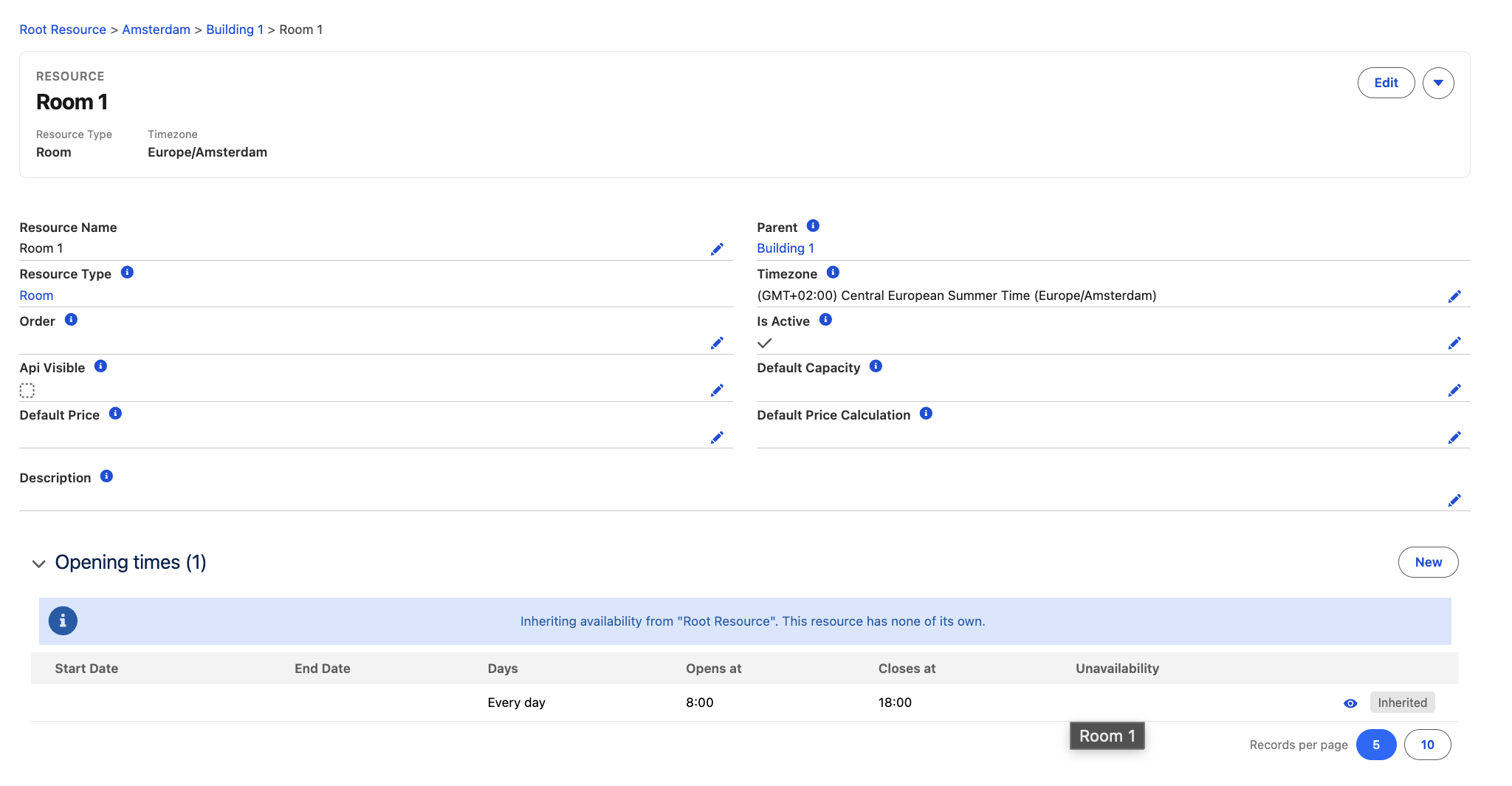
Reservable resources need opening times before anyone can book them on the calendar. Select a resource and scroll to Opening times below its details. Click New to add opening times, or leave the list empty so the resource inherits availability from its parent. For more information, see Set Resource availability.
Unsaved changes
If you select another item in the tree, click a breadcrumb, or start a new child while you have unsaved changes, GoMeddo asks "You have unsaved changes. Discard them?". Click Cancel to keep editing. Switching to another page in the GoMeddo Settings menu does not show this warning, so save before you leave.
Error messages
These messages can appear when you save:
-
"There can be only one root Type." You tried to create a second Resource Type without a parent.
-
"There can be only one root node." You tried to create a second resource without a parent.
-
"The parent is not of the correct type" The parent resource's type is not the parent of the selected Resource Type.
-
"Cannot activate if parent is not active" Activate the parent resource first.
-
"Reached maximum number of Resources. Could not insert or update database." Your license limits the number of resources. Contact support@gomeddo.com.