This page applies only to the legacy services structure, which is active when Enable legacy services is enabled in GoMeddo Settings > GoMeddo Setup > System Settings. This is the default for orgs installed before GoMeddo 7.5. To migrate away from this structure, see Migrating from Legacy Services to the New Service Dimension Junction.
Introduction
Services are complementary to a Resource Reservation: you use them to add extras (add-ons) to a Reservation. A Service can be catering, but also extra equipment, such as a projector or a laptop. GoMeddo lets you book these Services, keeps track of their capacity through Service Availability, and calculates their price.
A Service Availability makes a Service available for specific Resources and lets you define an available quantity per Resource. For more information, see Set up the Resource Types & Resources hierarchy (legacy).
Service Types let you distinguish different types of Services.
Configure a Service and a Service Type
Every Service belongs to a Service Type, so you select or create the Service Type while you create the Service.
-
Go to the GoMeddo app.
-
Open the App Launcher, search for Services, and select it.
-
Click New.
-
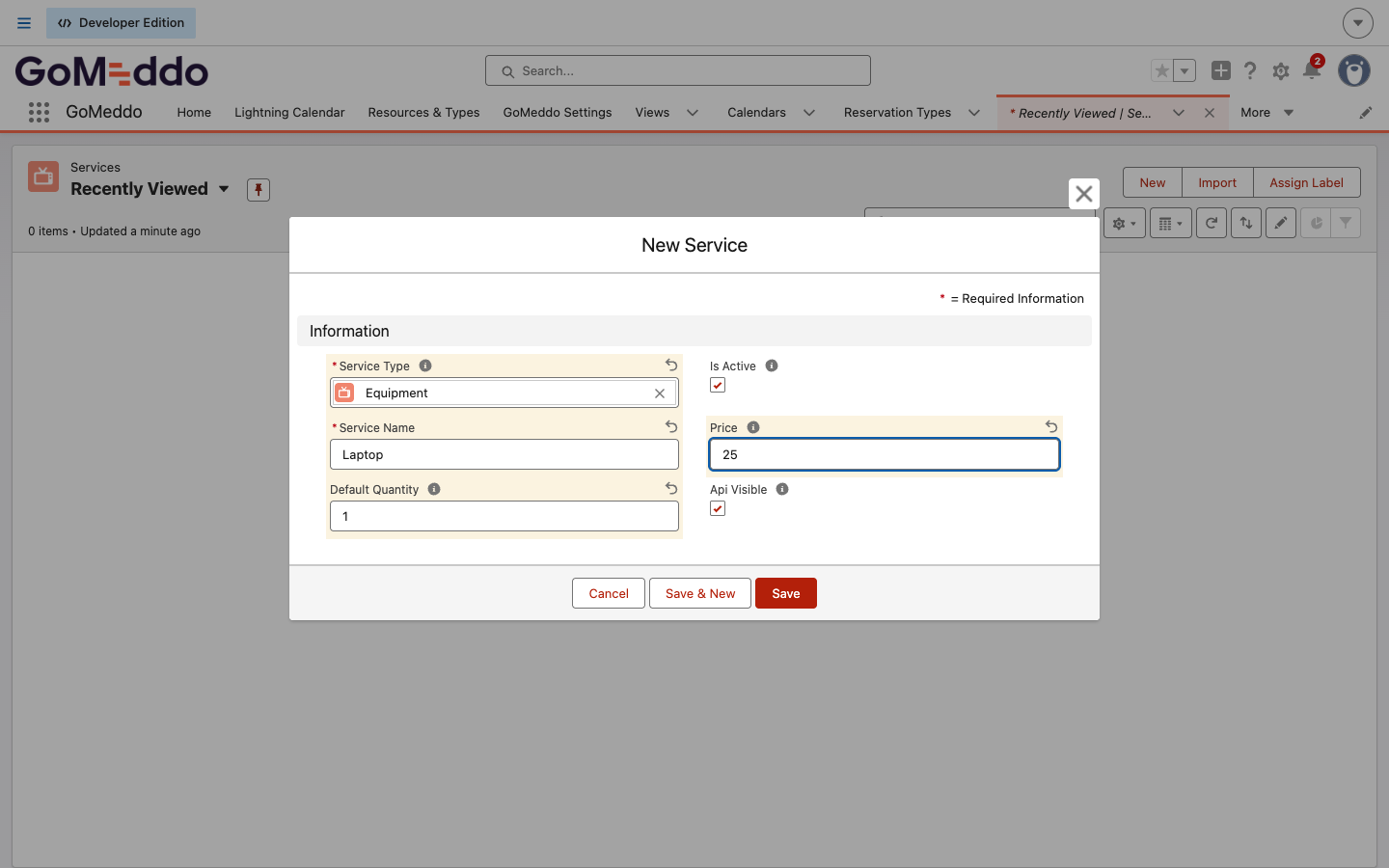
Click the Service Type field and select a Service Type, or click New Service Type to create one (for example Equipment).
-
Enter a Service Name (for example Laptop).
-
Optionally, enter a Default Quantity. This is the quantity GoMeddo fills in when the Service is added to a Reservation. If you leave it empty, GoMeddo copies the Quantity of the Reservation.
-
Optionally, enter a Price. For more information on service prices, see Set Service Pricing.
-
Click Save.
The New Service Type window looks like this:

The New Service window looks like this:
Configure a Service Availability
When you switch away from legacy services, these Service Availability records no longer apply. Normal availability replaces them.
There are two ways to add a Service Availability: from the Resource or from the Service.
From the Resource
-
Go to GoMeddo Settings > GoMeddo Setup > Resources.
-
Select the Resource for which (and for its children) you want to provide a Service Availability.
-
Click the arrow next to Edit and select View in Salesforce. The Resource record page opens in a new browser tab.
-
Click Related.
-
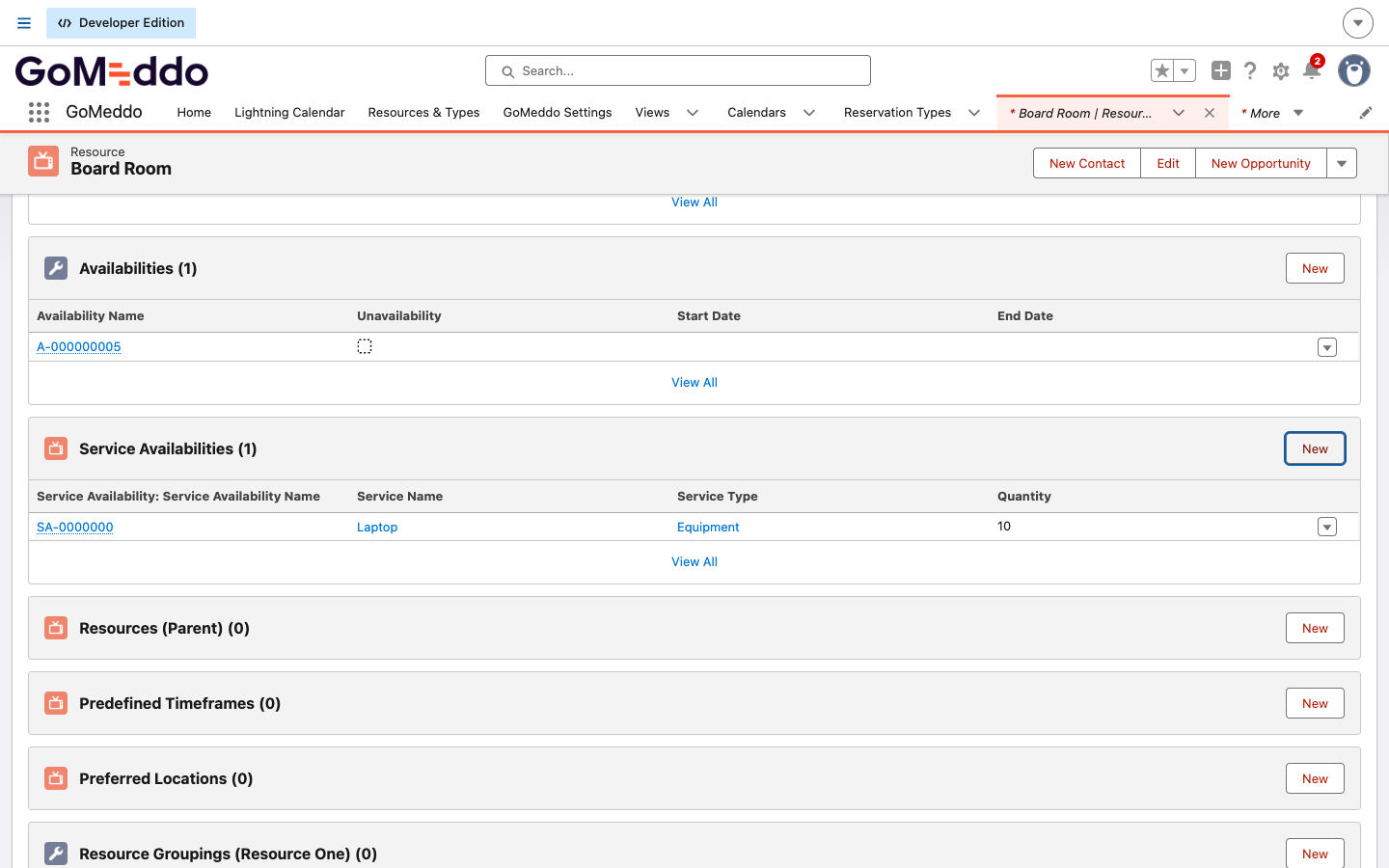
In the Service Availabilities list, click New.
-
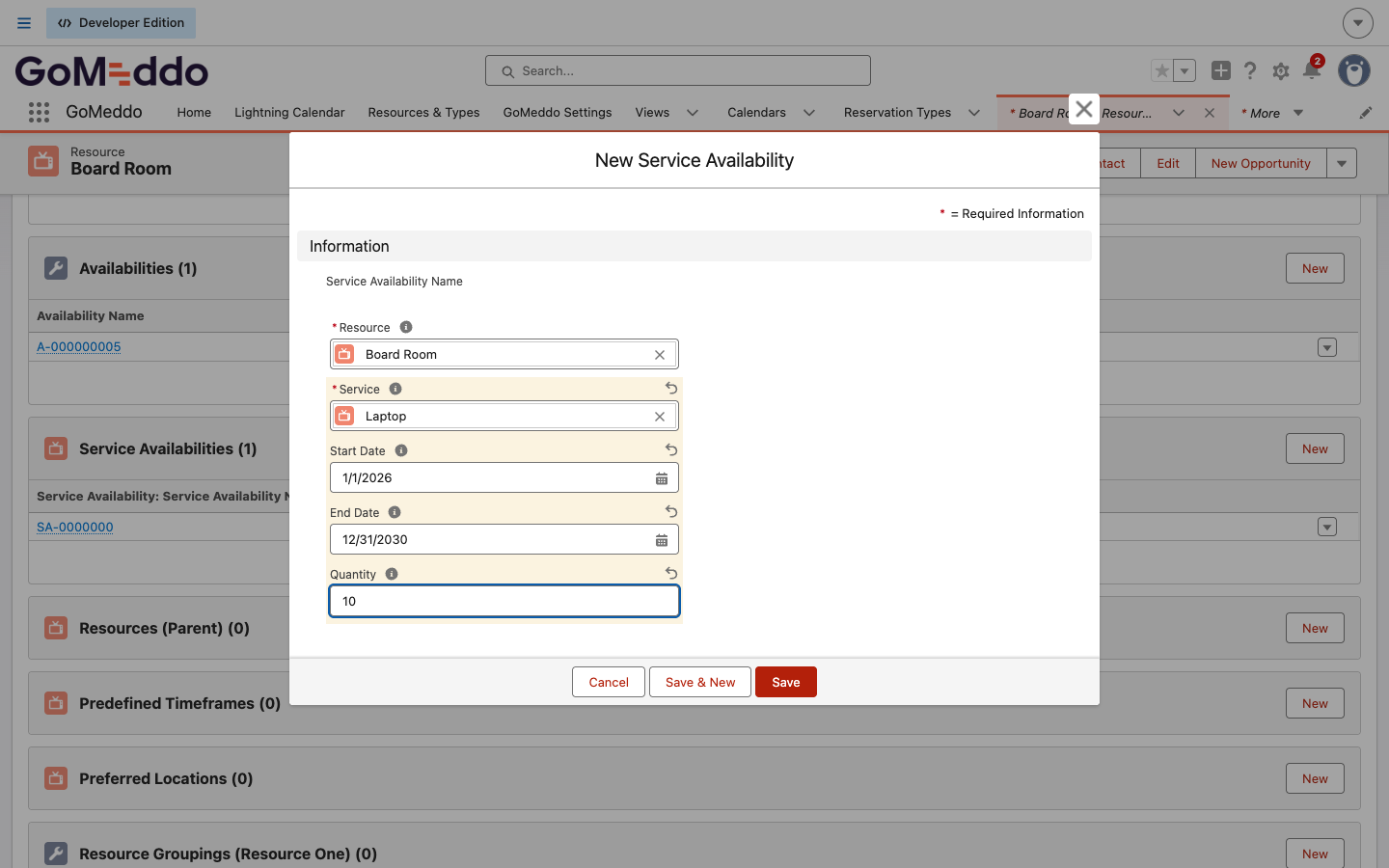
Select the Service, and enter the Start Date and End Date. Both dates are required.
-
Optionally, enter a Quantity. Leave it empty if an unlimited quantity of the Service is available.
-
Click Save.
The Service Availability also applies to the children of the Resource.
The Service Availabilities list on the Resource record page looks like this:
From the Service record
-
Go to the GoMeddo app.
-
Open the App Launcher, search for Services, and select it.
-
Open the Service for which you want to add an availability.
-
Click Related, and click New in the Service Availabilities list.
-
Select the Resource, and enter the Start Date, the End Date, and optionally the Quantity.
-
Click Save.
The Service Availability also applies to the children of the Resource.
If the Service Availabilities list is not on the Service record page, add it to the Service page layout in Setup > Object Manager > Service > Page Layouts, or add the Service Availability from the Resource.
The New Service Availability window looks like this: