
Service Packages let you bundle Services that are often booked together, so a user can add them to a Reservation in one go instead of adding each Service separately. For example, a Meeting Package can hold coffee and tea, lunch, and a projector. When a user adds the package to a Reservation, GoMeddo adds every Service in it as its own service line, with the quantity you set on the package.
Before you start: this guide assumes the following.
-
GoMeddo 7.5 or later is installed.
-
You have the B25 Admin permission set.
-
Your org uses the new Service structure, where Service is a Dimension. If Enable legacy services is still enabled in your org, see Migrating from Legacy Services to the New Service Dimension Junction first.
-
The Services you want to bundle already exist and are active.
What is a Service Package?
A Service Package is a named bundle of Services. Each Service in the bundle is a Service Package Item, which also holds the quantity of that Service the package adds. A Service Package is a Dimension, the GoMeddo object type that can be linked to a Reservation and checked for availability, just like Resources, Staff, and Services.
When a user adds a Service Package to a Reservation, GoMeddo does two things:
-
It records the package on the Reservation, in the Service Packages section of the reservation form.
-
It adds one service line per Service in the package to the Services section, with the quantity and price of that Service.
The price of the Reservation is the sum of these service lines. Users can still change the quantity of each service line after the package has added it.
Create a Service Package
-
Open the App Launcher and go to the Service Packages tab.
-
Click New.
-
Enter a Service Package Name, for example Meeting Package.
-
Leave Is Active checked. Only active Service Packages can be added to Reservations.
-
Click Save.
The new Service Package now appears in the Service Packages list view.
The Price field on the Service Package is for your own reference, for example to show a package price in a quote. GoMeddo does not use it in the price calculation. The Reservation is priced from the individual service lines the package adds.
Add Services to the package
-
Open the Service Package you created.
-
Click the Related tab.
-
Click New on the Service Package Items related list.
-
Select the Service to include.
-
Optionally, enter a Quantity.
-
Click Save.
-
Repeat these steps for every Service in the package.
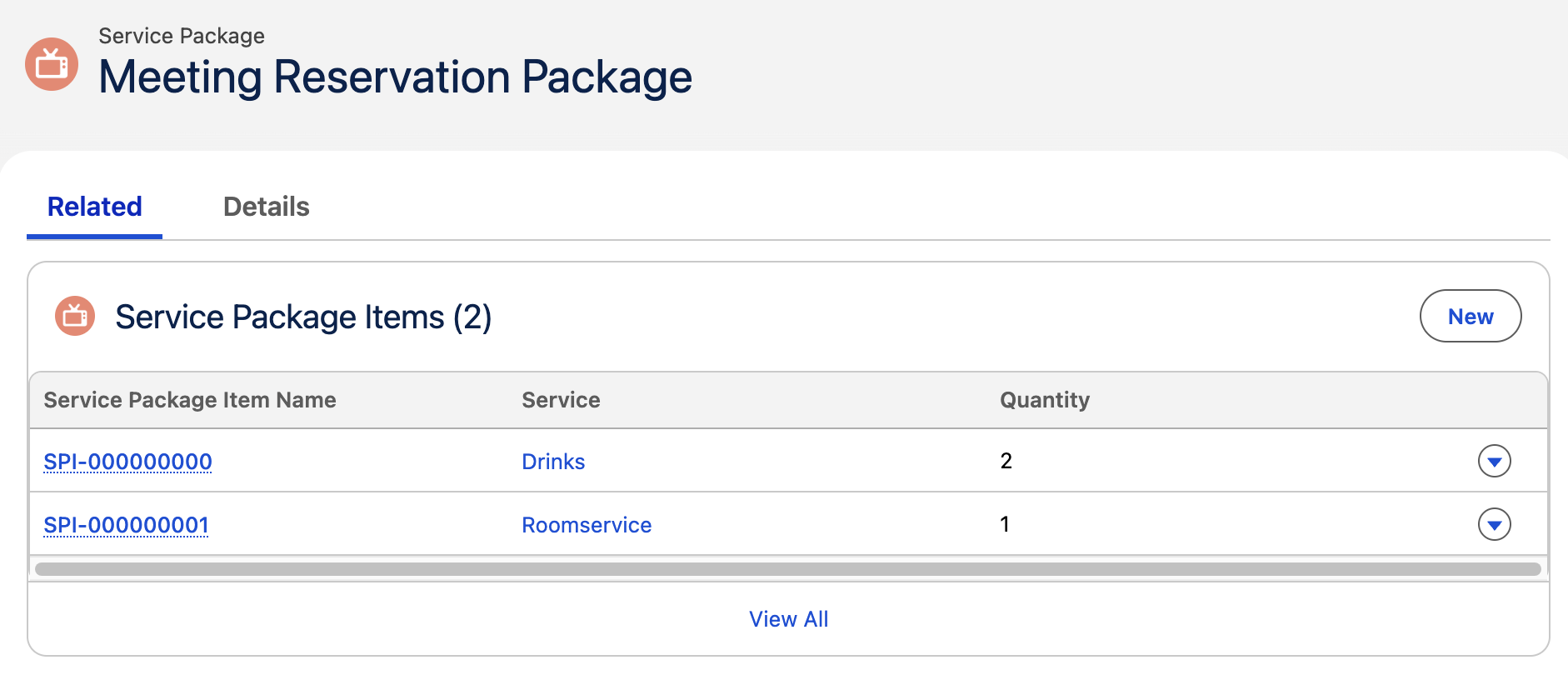
The Quantity is the quantity of the Service that GoMeddo adds to the Reservation. If you leave it empty, GoMeddo uses the Default Quantity of the Service, and if the Service has no default quantity either, the quantity of the Reservation.
Each Service can be in a package only once. Salesforce shows these errors when an item does not meet the rules:
-
This service is already in this service package.
-
Quantity must be greater than zero.
Inactive Services stay on the package, but GoMeddo skips them when it adds the package to a Reservation.
Make the package available
GoMeddo only offers a Service Package on the reservation form when it is available for the Resource and time of the Reservation. You define this with an Availability record, in the same way as for Services. See Multi-Dimensional Availabilities for how these availabilities behave.
-
Open the Service Package.
-
Click the Related tab.
-
Click New on the Availabilities related list.
-
Enable Is Dependent Availability.
-
Select the Resource the package should be available for.
-
Set the time window in which the package is available.
-
Click Save.
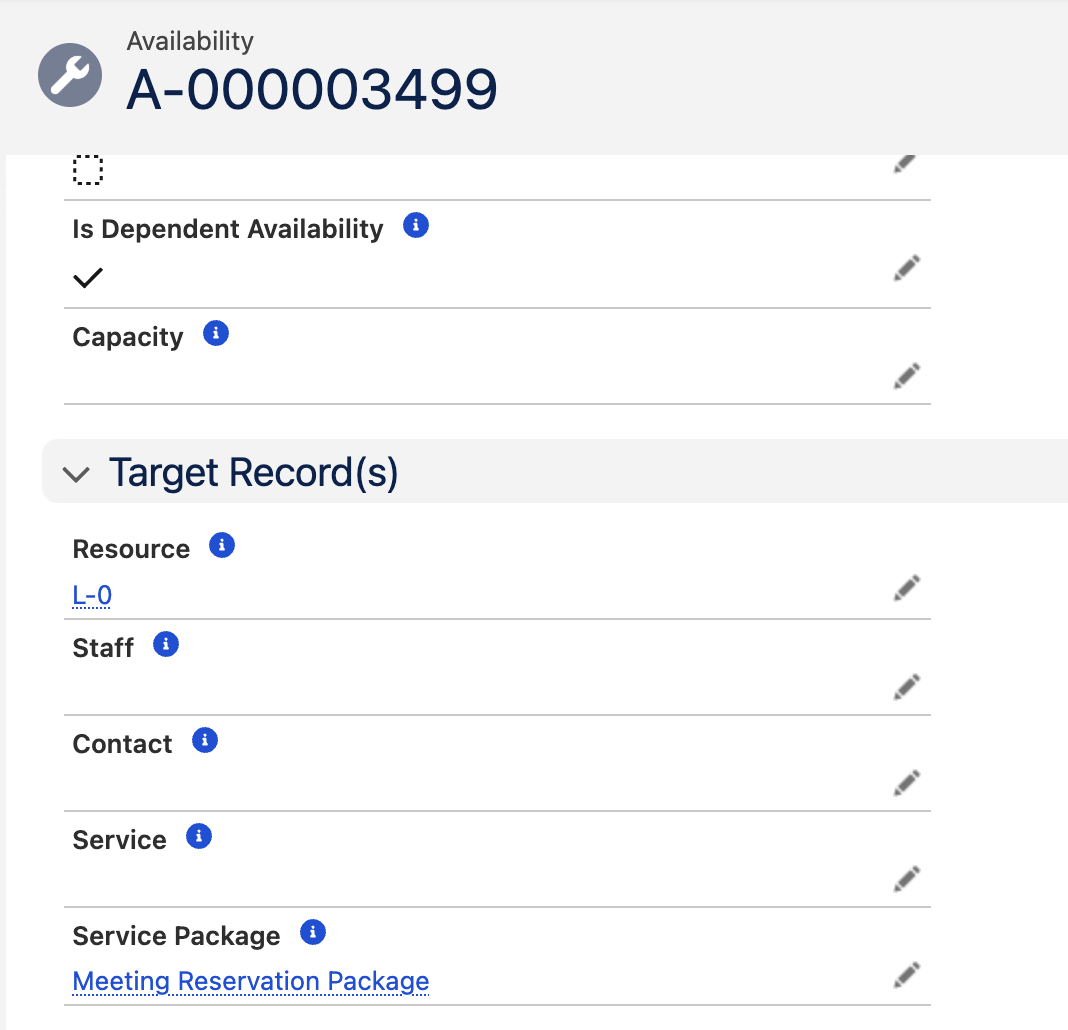
An availability on a parent Resource also applies to its child Resources.
On top of its own availability, GoMeddo only offers a package when every active Service in it is available on the Reservation. If one of the Services is not available for the Resource or the time of the Reservation, the package does not appear in the search results. This prevents users from adding a package that would fail on one of its services when they save.
Set up Service Packages after an upgrade
You can skip this section if you installed GoMeddo 7.5 or later as a new installation. In that case GoMeddo has already created the records below.
If you upgraded from an earlier version, create the Service Package Dimension and register its junction yourself, so the Service Packages section appears on the reservation form.
Create the Service Package Dimension
-
Open the App Launcher and go to the Dimension tab.
-
Click New.
-
Fill in the fields as described in the table below.
-
Click Save.
|
Field |
What to fill in |
|---|---|
|
Name |
|
|
Availability Lookup |
|
|
MDA Applies To This Dimension Only |
Checked |
Register the Service Package junction
-
Open the App Launcher and go to the Dimension Junction tab.
-
Click New.
-
Fill in the fields as described in the table below.
-
Click Save.
|
Field |
What to fill in |
|---|---|
|
Dimension |
The Service Package Dimension you created in the previous step. |
|
Name |
|
|
Reservation Lookup API Name |
|
|
Dimension Lookup API Name |
|
|
Availability Checking |
Hard. This makes sure only packages with a matching availability are offered. |
Show the section on the reservation form
Create a Dimension Junction Display Setting for the Service Package junction for each Reservation Type that should offer packages. Set the following fields:
-
Field Set to use:
B25__CustomFields -
Collapsed Field Set To Use:
B25__CollapsedFields -
Label:
$Label.B25__ServicePackages, so the section is called Service Packages in every user language.
See Displaying Dimension Junctions on the Reservation Form for the other fields on this setting, such as Reservation Type and Order.
Add a Service Package to a Reservation
-
Open the reservation form for a new or existing Reservation.
-
Select the Resource and the time of the Reservation.
-
In the Service Packages section, search for the package.
-
Select the package.
-
Click Save.
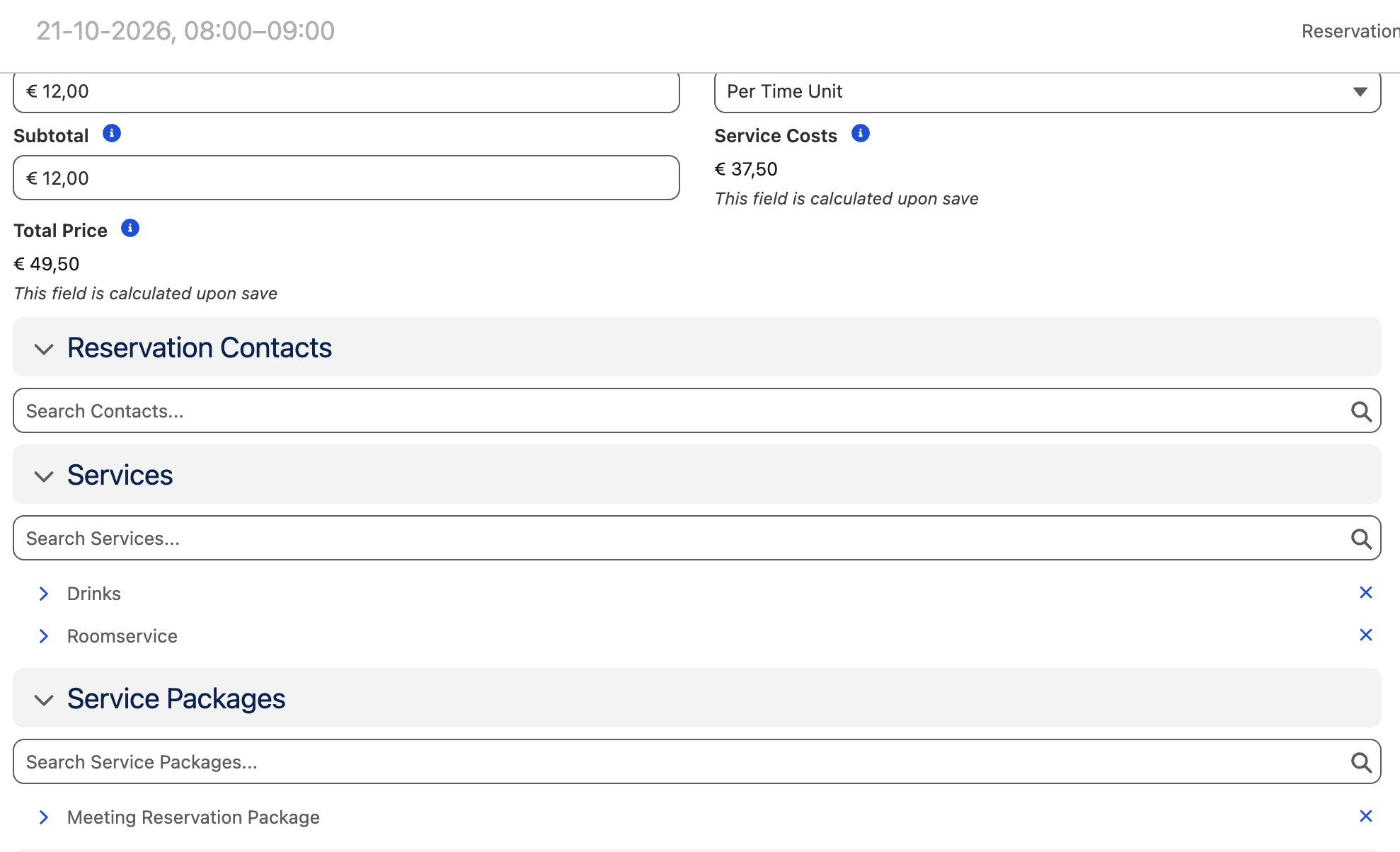
As soon as you select the package, its Services appear in the Services section, each with its own quantity and price. You can change these quantities before you save.
The service cost of the reservation is automatically calculated based on the price of all the services in the package.
If the Service Packages section is not visible on the reservation form, ask your admin to check the Dimension Junction Display Setting for your Reservation Type. If a package does not appear in the search, check that it is active and that it and all its Services are available for the selected Resource and time.
Remove a Service Package or one of its Services
GoMeddo keeps the package and its service lines in step, whether you remove them on the reservation form or delete the records directly:
-
Removing a Service Package from a Reservation also removes all the service lines it added.
-
Removing one of the service lines a package added removes the package from the Reservation. The other service lines stay on the Reservation as separate Services, so you only lose the one you removed.
Services you added to the Reservation yourself, outside a package, are never removed by these actions.